• Skip to primary navigation
  • Skip to main content
  • Skip to primary sidebar
  • Skip to footer
tech blog au

Digital Grog — Australia’s Tech, Gadgets & Digital Life Unfiltered

Digital Grog is Australia’s go‑to tech blog for sharp reviews, digital trends, AI tools, gadgets, cybersecurity updates, and practical how‑tos covering the latest in Aussie technology

  • About Us
  • Contact Us
  • Block Examples
  • Landing Page

Internet

The apps that got Melbourne through lockdown

November 29, 2020 by admin 1 Comment

HEALTH APPS AUSTRALIA

To say that Melbourne went through a collective trauma is not an overstatement. Those eight long months of lockdown felt like an eternity, feeling even longer with the rest of the country coming out of isolation and moving on with their lives. There were brief reprieves and inspirations that caught our attention, like the quest to make the best banana bread and then trying to master a sourdough. Although, ultimately, it was the smart app developments that we spent too much time on that passed the months, each of them serving our needs in different ways and at different points of struggle.

Government App

The government has provided an app to keep you informed and safe during the Covid crisis in Australia. The COVIDSafe app is a tool that helps identify people exposed to coronavirus (COVID-19). This helps us support and protect you, your friends and family. Western Australia has come out with a new SafeWA app that small businesses can use to register visiting clients via a mobile phone app for contact tracing just in case of a breakout.

News apps

ABC’s rolling coverage of COVID-19 was in high rotation for many Victorians, especially when the restrictions were tightening or easing by the minute. Other than the ABC app, so many other news sources reported on the events unfolding bringing a varied dialogue in their own app form or part of the general News app. PedestrianTV covered the news with a millennial slant, Betoota Advocate provided the satire, as well as the stalwart outlets of The Age and the Australian. Given the mix of cultural, political and personal persuasions in Melbourne, choosing a ‘source of truth’ has been integral to all Victorians and was heavily relied on in times of uncertainty.

Mindfulness apps

If the need for mindfulness was a theory for some before lockdown, it was swiftly put into practice as isolating circumstances were not always conducive with a healthy mindset. Calm and Headspace are leading mindfulness apps in the marketplace offering guided meditation and playlists to support the goal of sleep, anxiety relief and affirmations. Other apps are designed to purely capture grateful moments or journaling prompts, and others encourage small activities that can bring some calm to lockdowns, such as visualisation or mindful walking. Checking in with yourself has always been an important priority, especially as the lockdown was testing the resilience of many.

Social network apps

TikTok wasn’t that new to the world at the start of 2020, but it really reached its stride in Australia at around the time lockdown took effect in March. The simple act of filming dance challenges and short videos provided a point of connection and purpose to the community who needed it. House Party was another popular app during the lockdown, which facilitated video calls and group games in the easy-to-use social platform.

Health-tracking apps

When exercise was permitted for one hour a day, this was a significant announcement to those who were used to spending more time outside exercising and commuting. The closure of gyms also encouraged many to download health-tracking apps to clock how many steps a day were taken and logging exercise as it happened. Given the nature of the virus that prompted the Melbourne lockdown, the community was more attuned with their health and became more aware of any changes or possible symptoms as they were occurring.

Podcast apps

Podcasts were growing in popularity even before the lockdown, but so many more were started in the Melbourne lockdown as a way of connecting with others and making use of the extended periods at home. Consuming news daily was a given, but hearing your trusted podcast hosts digesting that same news and discussing the state of play was a way of accepting the long lockdown that Melbourne found itself in. With podcasts now available on the Podcast app (on Apple), Spotify and Stitcher, it’s never been easier to tune in.

It was an incredible day when Melbourne came out of the eight-month-long lockdown, and it was a feat that none want to go through again. As parts of the world start their own second lockdown, apps and digital resources will no doubt assist in the long slog ahead.

Filed Under: 2020, Apps, Internet Tagged With: Australia, Melbourne, Technology education

Top Video and Audio Conferencing Software for Business in 2020

September 21, 2020 by admin 1 Comment

"best

Covid has brought upon us the work from home generation and this culture is likely here to stay or get absorbed into the new working culture. With these current “do everything from home” circumstances, has come the rise of the new business productivity apps. If you are looking for the top video conferencing app for your business needs, our list and comparison below will point you in the right direction.

Zoom the web conferencing app has had a big exposure due to the current circumstances where a lot more people are using the internet to chat or meet online for personal or business reasons. It has not only multiples its user base in a very short span of time, but allowed itself to grow multifold in its market value due to the current circumstances.

WebEx and Microsoft teams are other such players in this field. Webex has been there for a while, but Microsoft teams is a new and fresh contender which his also gaining popularity for its ease of use in the business world. Below we have some software for business needs and also some for personal use like video chatting with family.

Let’s have a look at some of this apps/software and how they work

Top 5 Business Productivity Apps

ZOOM

zoom to video chat

https://zoom.us/whatsnew

Zoom is best-known for being the go-to choice for businesses that need access to quick and convenient video for internal and external audio or video conferencing.

  • Offers high-quality HD video and audio.
  • Simple and easy to use platform
  • Offers  collaboration facilities such as text chat and screen sharing
  • You do not sign up for the app to join a Zoom meeting (hopefully this doesn’t change)
  • To host a video conference, you need to create an account
  • Can sign up using existing Facebook and Google accounts
  • Works with Windows, macOS, Android, and iOS
  • Desktop users can also begin a local recording
  • There is extra functionality with plugins like integration with outlook , google chrome, Firefox to make using the app from within these software easier

Zoom app is offered in both free and paid versions. The paid version has some additional features like you can add up to 1000 participants, record calls, and much more.


WEBEX by cisco

webex australia

https://www.webex.com/pricing/index.html

WebEx is a flexible conferencing solution designed for businesses of any sizes you can think. Cisco owns the WebEx brand and has been around for a while with a high degree of reliability.

  • High quality web and HD video meeting software
  • It has Integrated application/file sharing(screen sharing)
  • Integrated with Outlook – add WebEx to a meeting in my calendar and all invitees will have the information
  • Cross platform – works with Windows, Mac, iPad and support mobile meetings for iPhones, Blackberries, Androids.
  • With WebEx meetings you can also chat using your phone or home line and watching the video/ video conference or meeting using your internet connection.
  • Supports immediate playback of multi-media content like flash and windows media player
  • Great customer service

Webex makes a good reliable software/app for  video and audio conferencing  for business needs and integrates well with their  most browsers and  their other products like jabber.


Microsoft Teams by Microsoft

teams by microsoft

https://www.microsoft.com/en-au/microsoft-365/microsoft-teams/

Microsoft Teams is a new player in the market that has rapidly taken over market share from webex and zoom.

With the competition heating up for video conferencing platforms like Google Meet and many other free video conferencing platforms, Microsoft has made it free to collaborate with your colleagues with some limitations.


  • Multi-Platform support -You can use Microsoft Teams on most platforms including Android, iOS, Windows, Linux, and macOS.
  • Schedule video/audio meetings with one person or a team or make a call directly to your teammates.
  • Features includes screen sharing and call recording, background blur and chat.
  • Just share a link with your team to join the call or a meeting.
  • Easy to use – The interface is clean and simple to understand. You can initiate an online meeting or can schedule one as per your requirement.
  • Host a webinar or meeting with up to 10,000 participants.
  • App is integrated with Microsoft 365
  • If the other person is unable to answer, you can leave a voicemail-like message.
  • With Microsoft Teams integrations with Outlook, you can schedule a video call in advance and you get an alert before it begins.
  • The free account offers 10 GB of team file storage and 2 GB of personal file storage per person
  • It supports most Microsoft software. Teams let you collaborate in real-time with MS Office including Word, Excel, PowerPoint, and OneNote. Let your teammates access, share, and edit Word docs, PowerPoint, and Excel files in real-time
  • You can communicate and collaborate with teams up to 500K users
  • Microsoft keeps your data secure by using Secure Real-time Transport Protocol (SRTP) technology for video and audio data encryption.


How to set up Microsoft Teams:

You can download the app directly from the app store or Microsoft website and use your email account to log in. It can also be accessed via a web browser.

If you remember skype owned by Microsoft and still use it, MT has been built using some features “Skype for Business” that has been rolled into Teams. Teams support VoIP calling features where you can call anyone with a phone using Microsoft’s cloud-based PBX.

Microsoft Teams is ideal for businesses who already use or are familiar with Microsoft products and for others it could be an expensive option. It is however a perfect solution to collaborate with your team with plenty of features and third-party app integration options, which is not available with competitors.


How to use and set up Zoom Meeting:

First, you need to get the Zoom app on your device.

You will need the code and password for the meeting you wish to join.

At the time of the meeting, enter your Zoom app and type in the meeting code. After a short while, you will be prompted to put in the password. Type it on the password line. You will get a message telling you to wait to be invited into the meeting by the host.

Once you get the invitation, you will see the host (or some meeting participants) on your screen. If you want them to be able to see and hear you during the meeting, tap the video and audio icons at the bottom of the screen to join the meeting with visual and audio.

You can also press “mute” any time you want to remain silent to the host or other participants. Just remember to press “unmute” if you want to be heard again. [ These zoom instructions can be quite similar to use for most other video conferencing apps too ]


Most of these apps work by creating a meeting id or a URL that you can share with people to join your meeting or video chat.

Companies or organisations will have to take into account – companies licensing agreements, hardware, budget, communication needs before signing up with such providers.

Historically with these apps none has been truly web-based, as they require a download, only work on certain devices, and don’t always work on all browsers. But this has changed now with most of these being able to be used with web browsers using plugins as alternatives and some even in stand- alone browsers.

Zoom vs WebEx

Zoom is the hot new web conferencing toy in the industry, but is proving itself to be well received in the workplace due to its ease of use and nice video interface. Cisco is a bit pricier when compared to others, but Zoom costs can add on with charges for add-on charges for extra features.


Other Business Video conferencing & Productivity APPS

Below are some apps that have been used for business as well as popular with personal use for video chat and audio calling features


GoToMeeting (popular with business use)

go to meeting business app

Go TO Meeting has been popular as a video conferencing app prior to the launch of these new popular apps who have grabbed user share. With GoToMeeting, you can schedule conferences for any time or place you choose. Additionally, attendees can join from a computer, laptop, tablet or smartphone.


Google Meet (popular with personal use)

video by google meet

If you have heard of google hangouts, this had evolved into google meet.  You can plan a video meeting in the Google calendar, Gmail, or Meet by signing in to the G Suite account.  Enter https://meet.google.com in a web browser

It has features like real-time captions and support for up to 250 participants and 100,000 live stream viewers


Facebook Messenger & What’s app (popular with personal use)

facebook messengerwhatsapp videochat

Both are owned by Facebook.

WhatsApp is one of the most popular chats on the planet. It counts over 1 billion active users. It offers you voice calls, video calls, and many other features.


Slack (business and personal use)

group chat by slack

Slack is a useful chat or conferencing app where you can create chats with different users, mention users via @ and view all team members files at one place. Slack allows you to make voice and video calls and show your work, you can share your screen just like in Skype.


Viber for Business (popular with personal use)

viber of business chat

Viber for Business completes the Skype for Business alternatives when looking for a collaboration or team chat environment.

Pricing:

Most providers have different type of plans like Pro, Business or Enterprise which are quoted according to your needs.  Pricing can also be calculated on per participant per meeting prices or then flat licensing deals. The typical lowest starting price is from $12/month to $15/ a month , however price can vary according to your  business needs.

Conclusion:

You can’t run a company without meetings and you cant video chat with friends without a video chat app.  Video conferencing services make communicating with your entire team or your group of friends and family easy. Today its possible to video chat or conference with large number of people depending on which platform you are using.

Which video conferencing apps do you use? Let us know in the comments below!

Filed Under: 2020, Apps, Australia, Compare, Internet, Software, Solution, Video Tagged With: apps, Comparison, Internet, Security, smartphone app, Technology education, VIDEO

A-Z Guide on Removing Unwanted Ads and Apps from Your Mac

September 1, 2020 by admin Leave a Comment

Using a Mac has always been associated with advanced security and intactness to viruses, all kinds of malware, and cyber-crime. But times change, and Mac users increasingly face a variety of malicious threats and data theft cases. Nobody is immune to cyber-crime in the 21st century, with hackers preying on your sensitive data and funds. Thus, it is imperative for every computer user to know more about malware, to learn how to scan their devices for viruses, and to find out how to remove ads on Mac (as they can also contain malicious code). Here we present an A-Z guide for everyone wishing to advance their Mac security. Read on to get the cutting-edge knowledge and skills for securing your devices and data.

mac security  for computers online

Why Is Your Computer Showing Too Many Ads?

We live in the era of pop-up ads that attack mobile phone and desktop users alike. These notifications can take the form of commercials, special offers, alerts, notifications of winning a prize or lottery, etc. Many of them are phishing attacks on your browser organized by third-party ad providers, while some ads are a healthy response of your browser to your search preferences. So, when does getting ads become too much or too annoying?

· You visited too many shopping websites and clicked “Allow” on the bar asking for sending you pop-up notifications.

· You have some unwanted software or adware installed on the browser.

In the first case, you need to go to Settings and block the pop-up notifications from merchants. In the second case, your browser has been hijacked, and you need to take action to restore its healthy functioning.

Blocking Adware in Safari

Once you realize that the ads are getting too annoying, it’s high time to install an ad blocker. It is a program removing most types of ads from your browser and blocking dubious pop-up notices. To choose an ad blocker suiting your goals, consider either standalone software covering all ads on your computer or a customized add-on to your computer browser. Besides, there is a built-in ad blocker function in the Safari browser on Macs. Let’s consider each of the options in more detail.

Safari Ad Blocker

To block all incoming ads in your Safari browser, go to the “Security” settings in the section of “Safari preferences.” There, you should indicate that you want to block pop-ups and fraud warnings. Mac security settings allow getting alerts of visiting fraudulent websites, locking pop-up windows, and specifying the plug-in installation preferences. Another option is to double-check the “Extensions” section where the illicit adware may reside.

Standalone Software

If you’re using a third-party ad blocker program, first install it on your Mac and run it on the computer. By following the app’s instructions, you can customize the ad blocking preferences, indicating which ads you would like to receive, and which should be blocked.

Are Ads only Bothersome or Really Dangerous?

Internet commercials have long been considered the “necessary evil” as they help web resource creators sustain a regular revenue stream from advertisers, thus allowing them to provide valuable content to users for free. You can also enjoy some free resources online by only watching several ads, so is that bad?

Overall, there is nothing criminal about ads as such; the problem may be suspected if you see too many pop-up ads that worsen your browsing experience and distract you from the critical browser use goals. Besides, the red flag of something going wrong is seeing much irrelevant, even obscene advertising content, such as adult toys, dubious websites, etc. In such cases, you should suspect having some malicious adware on your Mac, which requires action.

Ad Blockers: A New Word in Mac Security?

There is no unanimous opinion about whether using an ad blocker to achieve complete blocking of ads is a good decision. On the one hand, you can avoid viewing distractive commercials, which speeds up and improves the browsing experience, at the same time securing you from the accidental installation of viruses and malware hiding in malicious ads. On the other hand, with so much shopping conducted online these days, you deprive yourself of an opportunity to receive customized suggestions based on intelligent analysis of your purchase intentions and preferences.

Besides, seeing no ads on free websites minimizes your support for website creators who earn from ads to deliver content to users for free. A tendency to block ads may soon transform into paid, subscription-based content access. Thus, it’s up to you to decide whether to spend a couple of minutes watching a short ad or paying for online content in other ways.

Filed Under: Australia, Computer, Hackers, Internet, Software Tagged With: Advertising, Apple, apps, Malware, pc

10 Tips To Get Ready Working From Home Successfully

July 4, 2020 by admin Leave a Comment

​Not many people realised that they would be working from home this year, No thanks to the Bl**dy virus that has turned the world upside down.  The covid virus has got hundred and thousands of people sick and has changed our lives in so many ways.

People now have turned to working from home in large numbers due to this calamity. People are self-isolating out of fear and safety.  A lot many have learnt to manage their lives remotely through video conferencing and virtual meetings.  It is essential for you to have a plan if you are going to work from home. In this post, we are going to look at what you need to start working from home ( more like a checklist)

A few things to sort out before you begin to work from home.

  • Make sure you have a proper table and chair that follow appropriate safe, ergonomic standards
  • Get a sit stand up desk if needed
  • Take regular breaks
  • Screen size of your laptop/desktop
  • Lighting in the room
  • Good NBN OR Internet connectivity
"

A proper table and chair set up is very essential if you are going to be working from home. The long hours (5 to 8 hours a day or more) sitting down can be tiresome, and you need to get your posture right, or you can damage your back or neck.  Luckily when you are in office, this is all taken care off by the workplace, so it is wise to take extra care with this while working from home.  This video here might give you a few tips.

A sit stand up desk

Sitting down in front of a laptop for long hours can result in cramped shoulders or back. Why not invest in a sit stand up desk. This should allow you to do work while sitting and also do work while standing half the time.  This method does wonders for many.

Take Regular breaks

Take breaks as if you would do so at your office.  If you took a morning break and an afternoon break with a walk around your block while at the office – do the same when you work from home.

Exercise keeps you healthy and more productive. Don’t forget when in office you do take some time to have a chat with fellow colleagues as well, so make sure you break up your continuous work time.

Getting Ready to Work from home

Gadgets, Settings and Adjustments you will need to make.

Work Monitors/ Docking stations

​WORK MONITORS: Turn your laptop into a Desktop. Your workplace monitors may be huge or dual monitors, so it enables you to see screens easily for long hours. Make sure you get a laptop which is easy to do work for long hours without strain on your eyes. Eye health is important too.

Get your laptop attached to your home desktop monitor or get your office laptop docking station to your home. Maybe get a laptop glare protector if you need one.

Proper lighting in room

LIGHTS: ​If there isn’t suitable or sufficient light in the room, it can lead to a strain on your eyes affecting your work, so it is essential to have enough light while working and lights that are not reflecting too much on your work area. Adjust as needed.

Hydrate

HYDRATION: If you don’t have a water bottle on your desk at work, you should get one. Office aircon are known to get the air dry around you, and you need to hydrate, so don’t forget to do the same when you are working from home. Get your regular dose of hydration.

​

Using your own mobile for work

​COMMUNICATION: Enquire with your office how you would make calls to clients. If they provide an office mobile or if you can use your own mobile or home phone and claim deductions or claim expenses back from office.

If you use your own mobile, for Samsung mobile you can block caller id or hide your number for a single call by entering #31# before the number you wish to dial. If you are a iPhone user The quickest way to block your iPhone’s caller ID is to use the *67 trick, which is referred to as “star six seven”

Headset with mic

You might need a good headset or headphones with mic to take part in video conferencing and training from home or then listen to training packages, without disturbing people at home or keeping conversations confidential.

Most laptops have a built-in camera nowadays, but if your doesn’t then just get one from your office or a  portable webcam from the tech shop or online.

Record Keeping of Expenses

Keep records of your expenses incurred due to working from home so that you can claim it from your office or then claim deductions if allowed. It is easy not to get all the expenses claimed back, which is due if you don’t keep detailed records and receipts.

Plan your lunch or brekky in advance

It is wise to plan your brekky and lunch in advance even though you are working from home to stop unnecessary interruptions at work, just like you would do so regularly. However, make sure you take your breaks.

Kids at home

​Set the rules. If you have kids at home while working, it can be difficult.  Have a sit-down conversation with your kids? Make them understand that you need minimal interruptions. Plan a daily routine for them as well, Learning time (online learning time), TV time and outdoor play time. Pre-plan activities for them to do.

Good Internet connection

​A good stress-free work time can be achieved with good internet connections and good connectivity. Make sure you test your laptop if set up to work from home first from your office before you bring it to home.

To avoid disconnections and lag while working – your office will need good virtual network set up, and also you will need a good internet connection. A good idea would be for your kids to not watch Netflix, YouTube videos or stream audio via internet during when you work – if this is possible.

Work Start /End Timing

All companies or workplaces have different rules, though you can expect quite a few to be the same when it comes to work start and end times. You need to plan your start and finish times.

If you are working from home, you save the travel time. So, with that bonus, you could possibly start a bit early and finish early.  Some offices don’t allow you to accrue flex time, and some do, so if its allowed maybe you can work an extra half hour every day and accumulate some flex with an early start. If its not allowed, then you can still start early and finish early and get more time to your day.

Psychology of working from home

Many people will jump at the idea of working from home, not knowing what it entails or how they will cope. Some will succeed it doing it well, and some will fail miserably and not get much done affecting their productivity.

It is essential to know hat kind of work person you are to succeed, if you can get along just fine without an office formal atmosphere and work in your pyjamas that’s okay. But if you will find it hard to work in a casual home setting, maybe you will still need to dress (formals) and act the part to work from home. It’s all about getting your mind into the right frame of work.

Conclusion:

Just finished counting the points, so in total there was “14 tips to get you started working from home successfully”

There are other things you might need – if you suddenly have had to start working from home like printers, printing paper, envelopes, office mobile, paper shredder, filing box or files, stationery and your help desk and support contact numbers ready.  

Enquire with your office if they allow you to take equipment home for working from home- You might be surprised. Good luck and please do comment below if you have any additional tips you can add to my article.

  • WiFi Range Extender
  • Sit stand up desk
  • Headphones with mic
  • KENSINGTON Monitor Stand
  • Desktop Monitor
  • Docking station for laptops
  • Webcam for Desktop or Laptop

tp link modem router

WAVLINK WiFi Range Extender AC1200 Wireless Router/AP Access Point/WiFi Extenders Signal Booster/Range Extender with Dual Band 5Ghz 2.4Ghz 1200Mbps Works Any Route

This is something you might need  to get proper wifi coverage to get  your work done at home.  You will only need this if your modem/router is not good enough in distributing the  wifi signal around your house.

 Network extender mode boosts wireless signal to previously unreachable or hard-to-wire areas flawlessly Miniature size and wall-mounted design make it easy to deploy and move flexibly
 
Features

Eliminates Dead Spots and Extends the Existing Wireless-AC Coverage

    1. Using the Wavlink 575A3 Range Extender, you can easily extend the range of your existing wireless router to create a strong Wi-Fi signal for all the devices in and around your home, including smartphones, tablets, ultra-books, and more.
    2. Greater coverage allows you to enjoy fast Wi-Fi speeds on your laptop or tablet .
    3. It can Creates Wi-Fi speeds that are up to three times faster than wireless-N. With this extra speed, you can stream HD-quality videos and play online games seamlessly without interruptions or lag.
 

pro plus 36 white desk sit stand up desk

Featured Pro plus 36 Varidesk model

The sit stand up desk is becoming a popular alternative today to improve more healthy computer use and prevent your body from bad posture health risks. It helps reduces incidents at the workplace.

Features:

· Best selling model

· Risk-free for 30 days

· Two-tier design: upper display surface, lower keyboard/mouse deck

· 5 year warranty

· Shipped fully assembled and best-in-class materials used


Prices and more over here


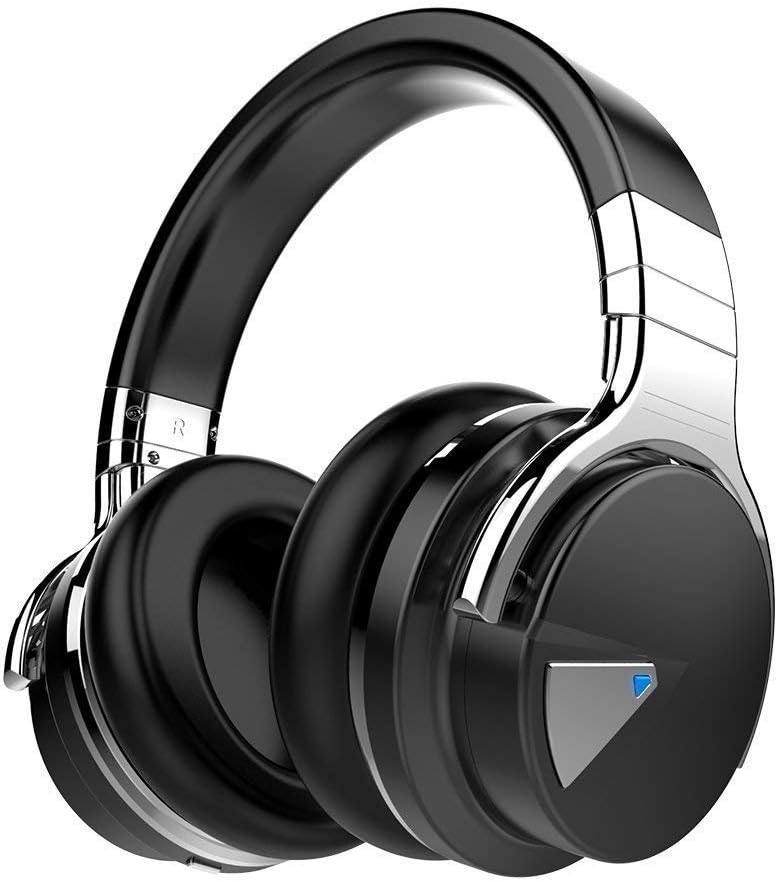
You can get a cheapo PC headset at officeworks  for between $10 to $20 that will do the job  for video and audio conferencing or then you can purchase a fancy noise cancelling headphones with mic  that will do the job and allow you to listen to music at high quality.


This is the COWIN E7 Active Noise Cancelling Headphones Bluetooth Headphones with Mic Deep Bass Wireless Headphones Over Ear with inbuilt mic. It has active noise cancelling technology

Link here: https://www.amazon.com.au/Cancelling-Headphones-Bluetooth-Comfortable-Cellphone/dp/B07RW8DT4S/


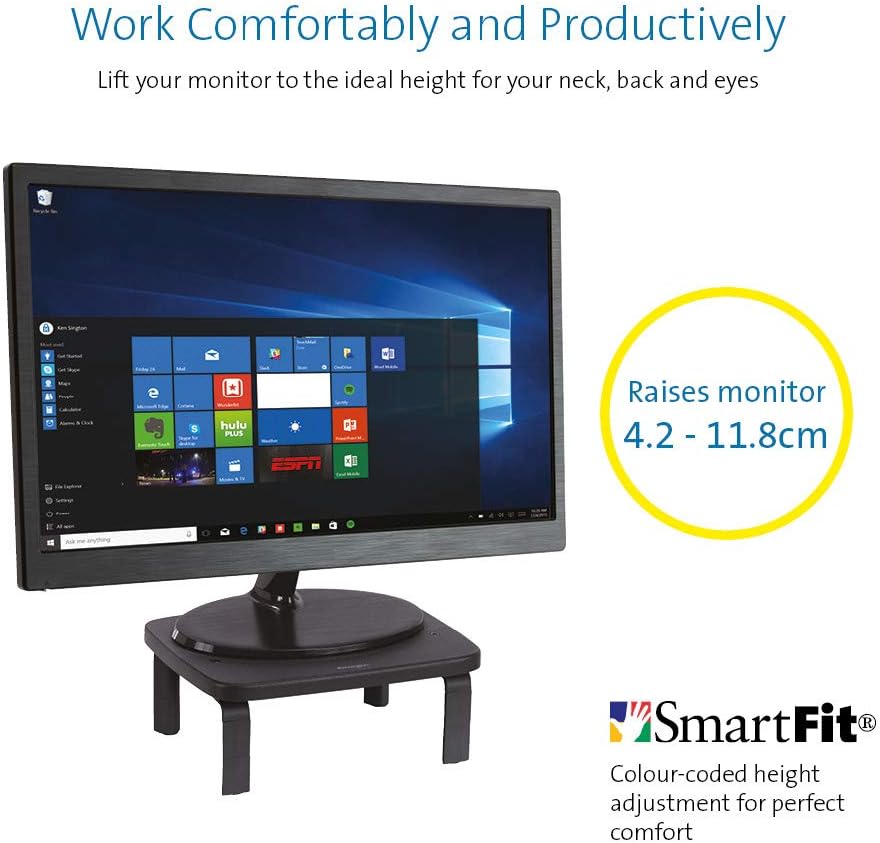
If you  got a monitor or need to jack up the height of your laptop then you need this.


KENSINGTON(R) 52785 Monitor Stand, SMARTFIT Standard

Stand positions monitor in line with your eyes to help reduce eye strain.

Price: $39.00 & FREE Delivery.

Check updated prices here 

If this is not your thing, you might want to check laptop stand on Amazon.com.au.

Acer ET322QR 31.5" Curved Flat Panel Monitor

If you are game enough to get a fancy new curved monitor then this is the one you need to pick up from Harvey Norman. It’s the Acer ET322QR 31.5″ Curved Flat Panel Monitor.

This Curved Flat Panel Monitor delivers clear and vibrant images at ideal viewing angles, while also adding a stylish touch to your entertainment setup.

Key Features
  • The Acer ET322QR 31.5″ Curved Flat Panel Monitor has a 1920 x 1080 resolution (60Hz refresh rate and 4ms response time) for sharp and detailed visuals.
  • Made with an 1800R curvature, the ET322QR monitor’s screen has a wrapping effect at optimal viewing distances to provide an immersive viewing experience.
  • Integrating Acer Flicker-less, BlueLight Shield, and Low dimming technologies, the monitor’s visual output is easy on the viewer’s eyes.
  • This Acer curved monitor has one VGA port and two HDMI ports to suit a variety of input sources.
  • For added convenience, this curved flat panel monitor supports a 100 x 100mm VESA wall mount.

Price Range: From $300 to $450

https://www.harveynorman.com.au/acer-et322qr-31-5-curved-flat-panel-monitor.html

If you want something more cheap and traditional looking, this is what you need below from Jb hi fi

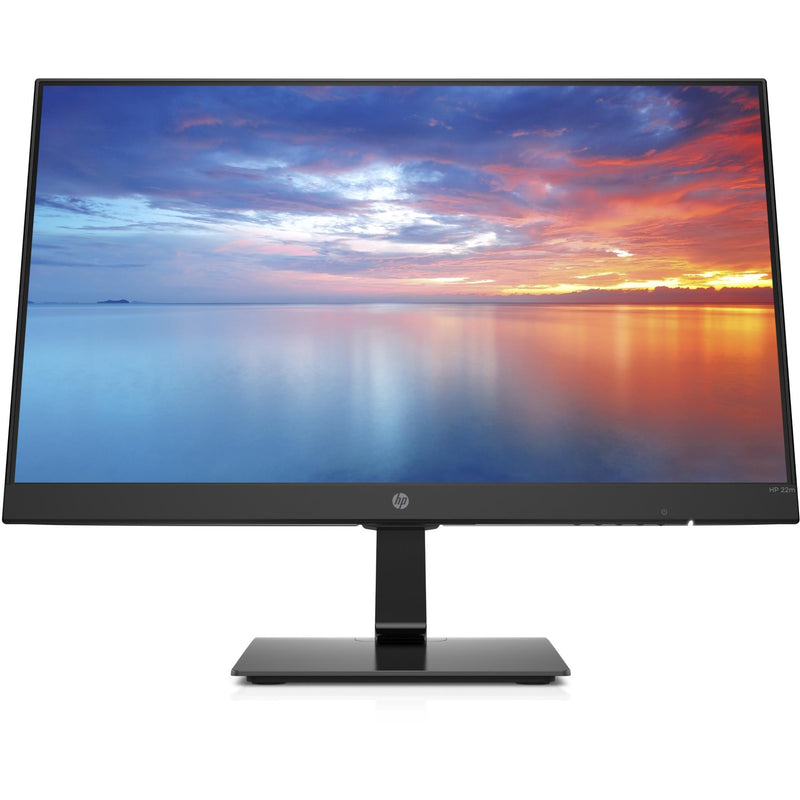
HP 3WL44AA 21.5\" FHD IPS Monitor


HP
Price: $169 to $200

HP 3WL44AA 21.5″ FHD IPS Monitor

Key Features

21.5″ IPS LED Display

FHD (1920 x 1080 @ 60 Hz)

1 HDMI 1.4 (with HDCP support); 1 VGA

Contrast ratio: 1000:1 static

14ms grey to grey response time

Anti-glare

On screen controls

Tilt: -5 to +20°

178° horizontal and vertical viewing angles

If you are going to work from a laptop then  a docking station might come handy. A docking station allows you to connect to devices that you could not use in the past. Devices like flat-panel monitors and digital cameras are not always compatible with laptops.  It provides a single connection point that allows a laptop to use a connected monitor, printer, keyboard, and mouse.

This allows a laptop to function like a desktop computer.

UPTab USB-C Docking Station with Ethernet, DisplayPort 4K, HDMI 4K, VGA, 3 Port USB 3.0, USB C PD and SD/TF Card Reader

Pic above is from https://au.uptab.com/uptab-usb-c-docking-station/

UPTab

USB-C Docking Station

$192.62 $129.41

Some more docking station gadgets

  1. StarTech Thunderbolt 3 Dual-4K Docking Station. …
  2. Targus USB 3.0 Dual Video Docking Station with Power. …
  3. AmazonBasics USB 3.0 Universal Laptop Docking Station. …
  4. Kensington USB 3.0 Docking Station. …
  5. Toshiba Dynadock V3. …
  6. Microsoft Surface Dock. …
  7. J5Create JUD500 USB 3.0 Ultra Station. …
  8. Dell USB 3.0 UHD Triple Video Docking Station.

or just get one from officeworks 

https://www.officeworks.com.au/shop/officeworks/p/kensington-universal-usb-c-powered-laptop-dock-sd4600p-kensd4600p

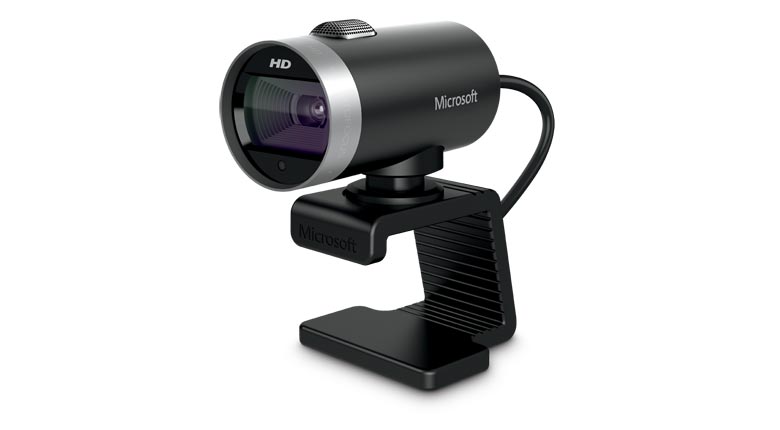
If you are going to do video conferencing or use zoom you will need a webcam 
 
LifeCam Cinema
 
This simple yet high quality webcam will do the job and last you a long time.

Lifecam Cinema

https://www.microsoft.com/accessories/en-us/products/webcams/lifecam-cinema/h5d-00013

Part #: H5D-00013

MSRP

$69.95


Enjoy high-quality 720p HD widescreen video together with crystal clear audio, with the LifeCam Cinema

You dont need a high end camera with ridiculous price, this will do the job

"Ref

Provide guidance on what is a safe home office environment, including what a good work station set up looks like and how to keep physically –  https://www.safeworkaustralia.gov.au/covid-19-information-workplaces/working-home

Fairwork Australia – https://www.fairwork.gov.au/employee-entitlements/flexibility-in-the-workplace/flexible-working-arrangements

Find out which employees can request flexible working arrangements, how to work..

Filed Under: 2020, Australian, Internet, Laptop, Solution, Top 10 Tagged With: Australia, Online, Technology, VIDEO

Is Online Learning Part of a New Educational Evolution

June 30, 2020 by admin Leave a Comment

love to learn (1)

Inked feathers, pens, typewriters, computers, and now online learning. Each had its own place in the evolution of modern education. The COVID global lockdown spurred a new appreciation for studying at home rather than slogging down to a college or university. With that in mind, the question is, is online learning now a component of educational evolution.

I Had to Go to a Library

Here is a line from the great comedian Ron White, “Back when I was in school, if we wanted to know something, we had to go to a library, which was a building. We would walk down there seeking knowledge, and sometimes, they would tell us that the knowledge we seek isn’t there, and to come back next week.”

Most millennials have a vague recollection of those days of visiting a library and hoping the book you need is there. When you look back, it is frightening to think that we had to go through all of that just to learn whatever our teachers had set out. Yet, education evolved, and online learning is no doubt a component in the next step of education evolution.

I Filled My Head with Garbage

While quoting popular culture, here is a snippet from the Simpsons. A new teacher asks a question, Martin Prince answers, and the teacher says, “Why have you learned that fact off by heart when anybody with a smartphone can look it up in seconds, To which Martin replies dramatically, “I’ve crammed my head full of garbage.”

We are leaving the era where you have to memorise a bunch of facts and figures in order to pass a test. In fact, the few places where such learning is still relevant is chemistry and physics. Other than those two, we are seeing exams rely less and less on the regurgitation of facts and figures from memory. This ties in very well with online learning because it is almost devoid of such memorising. You may need to memorise concepts and/or scenarios, but the verbatim recital of facts and figures are not as heavily relied upon, which is in line with the current evolution of the education system.

More Sit-at-a-Computer Vocations

Perhaps online learning courses are becoming more popular because they are also becoming more relevant. For example, twenty years ago there were far fewer jobs that could be done at a computer, and even fewer that could be (or learned) from home. For example, you cannot learn how to change a tyre from home, but you can learn logistics, programming, digital marketing, graphic design, bookkeeping, video editing, audio editing, and so forth from home.

You can then go out and get a job working in an office using those skills, or perhaps get remote work using those skills. The COVID lockdown has perhaps proven that many in-classroom courses need not take place in a classroom, which spurs on the changes that make digital learning a larger part of the mainstream education system.

Will the Human Factor Change?

There are some people who learn better when they are told by a teacher rather than reading it from a screen. A teacher can adapt and change the lesson based on the comprehension of the group, and in-classroom learning creates a sense of urgency, whereas many online courses can be failed through simple procrastination or lack of the sort of motivation that a teacher gives.

Conclusion – Digital Learning Should be a Facet of Modern Education

One could argue that online digital learning (from home) just doesn’t work for some people, but the same can be said for classroom learning and on-the-job learning. Nobody is saying that digital learning should become the one and only method of learning. It should simply factor into what makes up the modern education system.

Perhaps modern learning should be more adaptive. There are some students who will never learn chemistry through reading alone, who will need practical lessons, teachers, and so forth. There are some people who will never learn engineering correctly without on-the-job learning, self-teaching, and so forth. With any hope, modern education will one day lean towards teaching students the way they learn the best, be that in classrooms, digitally, on the job, or some mixture that works for the student in hand.

Filed Under: 2020, Australian, Internet, Netbook, Solution Tagged With: Online, Technology education

Top tips to choosing a Good NBN modem router

March 2, 2020 by admin 6 Comments

Your signing for the NBN which will inmost cases give you much faster speeds that you currently have and so having a good modem to distribute that fast internet speed around your house is a good idea.  You will need an NBN compatible modem if you were on the old ADSL connection with an older modem.

Read about –> NBN internet providers and plans in my last blog post, in this one  we look at the best picks for a good modem router for your NBN connection

The good thing is most NBN internet providers give you a free NBN modem if you sign up with them for an 18 month or longer internet plan. Some of them don’t and so you might have to purchase your NBN modem from the shop or pay extra to the provider for the modem.

Which is the best modem for NBN ?

Popular good modem brands in Australia are Netgear, Dlink, Netcomm, Tplink, ASUS, Draytek and Billion among others.

To keep it short, a good NBN modem should be a modem plus router – so that I can recive internet and can also distribute WIFI around the house. It should have at least three minimum ethernet points, one USB storage and a backup USB wifi dongle or 3g/4g/5g sim/dongle would be wishful.

Prices for modems routers In Australia
Generally a good nbn compatible modem can start from $120 onwards , but expect to get a decent one anywhere between $150 to $400 . The $400 are normally top of the range ones in looks and speeds too. Most of them are modem  plus routers.

I have made many lists before (for eg myhosting list for starting a website/blog ) .. Below I will give a list of some good modems for the NBN on the market before we get into the nitty gritty of what is the good features to look out for in selecting a modem

Good routers for the NBN

  1. TP Link TD-VG5612
  2. TP-Link Archer VR2800
  3. Netgear Nighthawk X4S D7800
  4. Netgear D6400
  5. ASUS DSL-AC56U
  6. ASUS DSL-AC68U
  7. D Link DSL-2877AL
  8. D Link DSL-2885A
  9. Draytek 2860n/n+/Vn/ac/Vac
  10. Draytek 2760
  11. Netcomm NF4V
  12. Netcomm NF17ACV
  13. Asus ROG GT-AX 11000
  • TP Link TD-VG5612
  • TP-Link Archer VR2800
  • Netgear Nighthawk X4S D7800
  • Netgear D6400
  • ASUS DSL-AC56U
  • ASUS DSL-AC68U
  • D Link DSL-2885A
  • Draytek Vigor 2862 Vac
  • Netcomm NF17ACV
  • Asus ROG GT-AX11000

tp link modem router

TP-Link TD-VG5612 Wireless router – 4-port switch

Brand: TP-Link
Connectivity: Wireless
Wireless standard: Wireless-N, Wireless-G
Encryption type: WEP, WPA, WPA2
Modem type: DSL Modem
Aerial: Internal
 
Features
  • Firewall protection
  • DMZ port + NAT support
  • Auto-negotiation, IGMP snooping, traffic shaping
  • Print server, MAC address filtering, VPN passthrough
  • URL filtering, parental control, IP address filtering
  • File sharing, Access Control List (ACL) support, Quality of Service (QoS)
  • Virtual server support, Wi-Fi Protected Setup (WPS), IPSec pass through
  • Samba support, FTP server, port forwarding, UPnP Media Server
  • Bandwidth control, DHCP relay, Stateful Packet Inspection Firewall (SPIF)
  • DNS relay, static routing, Multicast filtering function

Software / System Requirements

Software Included Drivers & Utilities
OS Required Apple Mac OS, Linux, Microsoft Windows Vista / XP / 7 / 8
 
Included Accessories
ADSL splitter
Cables Included 1 x modem cable 1 x network cable

TP-Link Archer VR2800 Wireless router – 4-port switch The Archer VR2800 DSL modem router supports super fast VDSL or ADSL broadband of up to 100 Mbps and other connections.

Additional features

  • Cable Modem or Fiber Modem compatible
  • Two USB 3.0 ports supporting 3G/4G dongle connections
  • Dedicated processor for each band to manage Wi-Fi traffic
  • 1GHz dual-core CPU.

The Netgear’s Nighthawk X4S boasts a dual-core 1.4GHz processor to handle the activity passing through it and a chipset capable of working in the 802.11ac network technology, which is also backwards compatible with the 802.11a/b/g/n networks.

Additional features

  • Quad Stream AC2600 WiFi for speeds up to 2.53Gbps (800+1733Mbps)
  • Next generation Wave2 WiFi
  • Dual Core 1.4GHz processor boosts performance for gaming and streaming
  • Built in high speed modem compatible with VDSL, VDSL2, ADSL, ADSL2, ADSL2+
  • Gigabit Ethernet WAN port for universal Internet service compatibility

Price range: From $315 to $350

The Netgear AC1600 DSL modem router provides a fast VDSL modem for fibre broadband and also works with ADSL connections.

It is a integrated modem and router as most models and you won’t need separate hardware from your service provider. It can handle homes with up to 10 devices.

Additional Features

  • It supports transfer speeds of up to 1300 Mbps.
  • It uses Beamforming technology to provide a large, reliable wireless range.
  • There are 2 USB 2.0 ports built-in to this router so you can connect a printer or a portable hard drive then access it wirelessly across your network.
  • You can use the Netgear Genie app to control and maintain your network.
  • This router supports parental controls so you can set up restrictions to your web access.

Price Range: From $197 to $243

https://www.youtube.com/watch?v=7jtYN9RP0SQ

The ASUS DSL-AC56U supports  as slew of features and technologies making this versatile modem router future proof. it supports  high speeds and  a detailed graphical interface to adjust  all your settings to your needs.

Additional Features

  • Concurrent Dual Band: 867Mbps on 5GHz and 300Mbps on 2.4GHz
  • Two WAN ports for DSL and Ethernet
  • Gigabit Ethernet ports 
  • Dual multi-purpose USB ports support file sharing, printer sharing, media streaming and 3G/4G support
  • VDSL/ADSL WAN multi service for IPTV support
  • PPTP VPN server and VPN client support
  • Download Master and enhanced media server let you download and stream anywhere
  • Enhanced signal range and stability with ASUS AiRadar using ASUS RF fine-tuning giving you extended coverage, dynamic data speed increases, and enhanced stability.
  • Ability for DSL, Ethernet or 3G/4G LTE Internet connections
  • Gigabit Internet browsing with hardware NAT
  • Ability to add external storage, printers, and other devices directly to your network
  • DSL ASUSWRT allows you to setup, monitor, and control network applications all in one intuitive area. 
  • Online multitasking at up to 300,000 sessions,gives you 20 times the capacity of mainstream routers. More data sessions translate into quicker and buffer-less HD streaming plus lag-free online gaming.
  • VPN server and VPN client support

Price Range: From $165 to $269


The ASUS DSL-AC68U is fast with combined dual-band data rates of up to 1900 Mbps. It is compatible with ADSL2/2+, ADSL, VDSL2, fiber and cable services. The easy-to-use ASUSWRT graphical user interface unlocks the power of the DSL-AC68U giving robust control to optimize your network for you. 30-second set-up and easy traffic management means even network newbies can enjoy its sophisticated features, while power users will love its IPv6 support, multiple wireless SSIDs and secure VPN access.

Additional Features

  • Compatible with ADSL2/2+, ADSL, VDSL2, fiber and cable services
  • 150% wider Wi-Fi coverage* Three external high-gain antennas 
  • Intuitive ASUS Router app -Manage your network anywhere
  • Enterprise-grade security for your home network -ASUS AiProtection with Trend Micro™ 
  • VPN server and client support
  • Dual WAN ports
  • Multi-purpose USB 3.0 port

Price Range: From $225 to $269

D-Link DSL-2885A Wireless Modem Router – 4-port switch
Dlink DSL-2885A Dual Band AC1200 Wireless Modem Router
 
The Dual Band Wireless AC1200 Gigabit ADSL2+/VDSL2 Modem Router helps with multiple connection options for sharing your high speed internet connection with a multitude of both wireless and wired devices. Dual band, NBN compatible, and capable of speeds up to 1200Mbps makes it a internet ready device for your home.
 
Details
Brand: D-Link
Connectivity: Wireless
Wireless standard: Wireless-AC, Wireless-N, Wireless-G
Feature: Dual Band, Gigabit Ethernet
Encryption type: WPA, WPA2
Modem type: DSL Modem
 
Additional Features:
  • Dual Band Wireless AC1200 Technology
  • Integrated ADSL2+ / VDSL2 Modem
  • NBN/UFB Ready (Dedicated Gigabit WAN port)
  • 4 x Gigabit Ethernet LAN Ports
  • Two USB 2.0 Ports for Storage, File Sharing or 4G USB modem
  • Supports AutoZoning technology

Price range: From $149 to $175

Visit official website

Draytek has a  range of xDSL routers series which include VDSL2, ADSL2/2+ and G.SHDSL models to meet different infrastructure. WAN failover/load-balancing Bandwidth Management/Firewall/VPN features are available in most models to ensure a secure & reliable network.

They have discontinued quite a few models, list available below.

Draytek Vigor 2862 Vac

Vigor2862 Series features comprehensive firewall and content security management (CSM) to secure the local network. Vigor2862 Series is a VDSL2/ADSL2+ Security Firewall router which is compatible with variants of ADSL and VDSL. All the models have an RJ-11 DSL port, and a Gigabit Ethernet WAN port which can be used with a cable-modem to connect to a second line for load balancing or failover, there are also two USB ports which can work with 3G/4G/LTE USB modems to add wireless connectivity.

Additional Features

VDSL2 or ADSL2/2+  
Gigabit WAN  
3G / 4G LTE USB
Gigabit LAN 4
VPN Tunnels 32
WLAN (AC2000) 11ac
Concurrent Dual Band  
VoIP (2xFXS, 1xPSTN)


Current Selling models in the Vigor 2862 Series are

  • Vigor 2862
  • Vigor 2862n
  • Vigor 2862 AC
  • Vigor 2862 VAC

There are also four models in the Vigor 2762 Series and one in Vigor 2832 Series and one in Vigor 2710 e Series.

Discontinued Draytek Vigor model numbers

  • Vigor2860n
  • Vigor 2860 Ln
  • Vigor 2860 L
  • Vigor 2860 Vac (AC1600)
  • Vigor 2860 ac (AC1600)
  • Vigor2860Vn-Plus
  • Vigor2860

Netcomm NF17 ACV VDSL/ADSL Dual Band Router

NF17ACV Side Angle

If you end up signing with Aussie Broadband for a NBN connection and paying for a modem,  this can  be the Modem Router you get. It looks pretty similar in design to the  TP Link model  TPG bundles free with their NBN connection.

Aussie Broadband Set up guide for this model –> Setup Guide

The NF17ACV is a smart residential VDSL2/ADSL2+ gateway designed to connect to VDSL and ADSL networks as well as nbn and UFB fibre services to deliver the fastest available broadband speeds and performance at home. You can connect up to 2 USB devices, access, and share even more A/V media files and content in real time.

Product details
Connectivity: Wireless
Wireless standard: Wireless-AC, Wireless-N, Wireless-G
Feature: Dual Band, Gigabit Ethernet
Modem type: DSL Modem
 
 
Additional Features
  • Fully featured VDSL2 / ADSL2+ gateway
  • 4 x Gigabit Ethernet 10/100/1000 LAN ports
  • nbn and UFB ready ultra-fast connection to nbn and UFB fibre network
  • 1 x 10/100/1000 Gigabit Ethernet WAN port
  • VoIP feature for HD quality voice calls – connect up to 2 telephones
  • Next generation WiFi 802.11 AC1600, dual band
  • 2x WPS push buttons for 2.4GHz and 5GHz bands
  • Access and share media and file content across the wireless home network
  • Device performance monitoring and management through TR-069
 
Price Range: From $90 to $199

Its a Modem router built for gaming.

rog rapture

Its the first 10 Gigabit Wi-Fi router with a quad-core processor and 2.5G gaming port

AX routers are the emerging technology in modem routers. The Asus ROG Rapture GT-AX 11000 ($450) is the first of the new Wi-Fi 6 class of router. The ROG Rapture GT-AX11000 brings in the new 802.11 ax routers in style and speed.

It is built and designed with gamers in mind. The range and speeds are what this is good for and the throughput rises with the distance, making it the ideal modem router to fill a large house with Wi-Fi.

Product details
Brand: ASUS
Connectivity: Wireless
Feature: Dual Band, Gigabit Ethernet

Additional Features

  • Next-Gen WiFi Standard – 802.11ax WiFi standard for better efficiency, throughput and range.
  • Ultrafast WiFi Speed – 11000Mbps WiFi speed to handle even the busiest network with ease.
  • Triple-level Game Acceleration – Accelerate game traffic every step of the way – from device to game server.
  • Battle-ready-hardware – 1.8GHz quad-core CPU and 2.5GBase -T port for ultimate performance.
  • Front-line Network Security – Neutralize internet threats before they hit your network.

Price Range: From $701 to $804

https://www.asus.com/au/Networking/ROG-Rapture-GT-AX11000/

Price ranges for modems
Generally a good nbn compatible modem can start from $60 onwards, but expect to get a decent one anywhere between $120 to $1000+. The $400+ price range modems are normally top of the range ones in looks and speeds too. Most of them are modem + routers.

How do I know if I need a New Modem for my NBN connection?

If you have had your modem for more than 3 years its likely that you will have to get a new modem for your NBN connection.

Check online or on the Modem box/paperwork if they mention that your modem is VDSL and VDSL2 compatible. If it is then there is a good chance your modem will work with your new NBN connection.

It is best to check with your new provider if your current modem will work with their internet connection before signing up with them.



What is the difference between modem and router?

A modem is the device that takes your telephone/internet line and makes it ready to use for internet purposes.

The router is the device that takes the telephone line converted to internet and enables it to be distributed via wires and wifi all over the house/designated area to different devices.

Works with Google Home /Alexa

While most modems and routers will connect to your google home and Alexa this router allows you to control your networking commands as well.

If you want a Wifi router that works with google Home and alexa to control your home using voice commands for home networking then the NIGHTHAWK SMART WIFI ROUTER-   R7000 model is your router of choice. Its not a modem.

https://www.netgear.com.au/home/products/networking/wifi-routers/R7000.aspx



Do I need both a modem and router?

Today many companies just provide a combined modem + router so you have them both in one device.

The higher priced modem routers enable higher speeds for wired as well as wifi between multiple devices and have better coverage area.

To give you an idea of how people started using modems/routers. Initially when people started using modems/internet, they just had one small modem hooked up to one pc in the house. Most people used that one pc to browse the internet.

Then people started hooking up that modem to a separate device called router, so that they could distribute that internet to multiple computers in the home. Then soon the internet was also distributed via wifi through routers to different devices in your home.

Today you can get a modem + router bundled in one device, doing all these jobs and still called a modem 😉



ADSL VS VDSL ?

With nbn already here you need a modem router that will do your NBN speeds justice and a VDSL (Very-high-bit-rate digital subscriber line ) or VDSL2 ready modem does just that.

Most new NBN ready modems cater to all kinds of internet connections  including a VDSL connection or a fibre to the premises box.

In short ADSL (Asymmetric digital subscriber line) gives slower speeds than VDSL and that’s why most nbn connections deliver internet via VDSL.

A VDSL or VDSL2 Modem will cover all kinds of nbn connections if you got fibre to the node or fibre to your home the VDSL modem will distribute that internet with optimum speed in your house.

More Modems 

Some more awesome modems reviewed including new AX  featured modems and mesh systems and nodes. Click to show.

14. TP-Link Archer AX6000 review

TP-Link Archer AX6000


What is 802.11ax Wi-Fi

Fast. High Efficiency.

Gaming, 4K/8K streaming, smart home devices, and AR/VR all compete for network resources, creating lag and crowding your network. To solve this problem,

802.11ax (also known as Wi-Fi 6), a next-genhigh-efficiency Wi-Fi standard, was created. Now, you can simultaneously connect more devices and enjoy the optimum speed for each of them.

AX Wi-Fi  aims to enhance wireless network performance by boosting speed and responsiveness better than MU-MIMO . The key improvement is called orthogonal frequency division multiple access (OFDMA) which increases connection capability in a single 20MHz channel from 52 (AC wireless) to 234 and also uses band steering to automatically ensure that less-crowded bands are used. The new Samsung Galaxy S10 smartphones are currently fully compatible to use this service. 

This system gives good speeds while playing online PC games and watching YouTube on two old Android tablets, however its expected that performance will drop off with Mesh systems and Wi-Fi extenders.  TP-Link’s Archer AX6000 achieves good speeds and will surely compete with mesh networks modem setups.

Its got a  1.8GHz quad-core processor on-board for its serious computing needs. The AX6000 has eight Gigabit Ethernet ports. and the WAN port supports 2.4 Gbps connections. It supports  two USB 3.0 ports: Type-A and Type-C. 

It also features built-in Trend Micro Security features, which offer antivirus and family filtering options including the ability to set usage limits and bed times for different users across multiple devices.

At $499 it’s not cheap, but it’s got all the important features, looks good and performs so well that you likely won’t need to buy other networking equipment for a long time to come.

Price Range: $499 | WWW.TP-LINK.COM/AU/


15. TP-Link Deco M4 mesh

TP-Link Deco M4 mesh (Double Kit)

Deco uses a system of units to achieve seamless whole-home Wi-Fi coverage — eliminate weak signal areas once and for all. TP-Link has launched the new mesh WiFi system, called Deco M4 or Deco M4R. Devices automatically switch between Decos as you move through your home for the fastest possible speeds

Additional Features:

Setting up is simple via the Deco app for this mesh system, it walks your through setting up the network, setting the password, updating the firmware and adding the second node. The app is slick, responsive and intuitive to use. 

  • A Deco M4 two-pack delivers Wi-Fi to an area of up to 260 square metres. 
  • Deco M4 provides fast and stable connections with speeds of up to 1167 Mbps and works with the major internet service provider (ISP) and modem.
  • Deco can handle traffic from even the busiest of networks, providing lag-free connections for up to 100 devices.
  • Parental Controls limits online time and block inappropriate websites according to unique profiles created for each family member.

This can be handy, you can switch the LED lights off and turn nodes into access points.  It’s also has Amazon Alexa and IFTTT smart device compatibility which is a bit future proof. 

The AC1200 Wi-Fi moniker refers to the maximum theoretical throughput of 867Mbps on the 5GHz band plus 300Mbps on 2.4GHz. TP-Link says it can manage 100 different devices but not at the same time. 

Cons for this mesh system 

  • It does not offer a web-based interface for administration
  • It has fewer features than other Deco systems, to make up for the price difference
  • It is not able to fully utilize 1 Gbps internet connections

In summary, this is about as good as an AC mesh system gets. The advanced features will definitely  attract some but the price can be a deterrent. At $230 for a double-pack it’s the cheapest mesh on the market. 

Price Range: $230 | WWW.TP-LINK.COM/AU/

16. ASUS RT-AX88U

ASUS RT-AX88U

Asus’ new RTAX88U design makes it look like a racer car just about to kick into gear and leave the rest behind and that is not far from the truth with its specs and features we will look at below. Its got a angular black chassis, four large antennae and gold detailing that makes its presence known.

RT-AX88U

This device has got a impressive feature list with eight gigabit Ethernet plus two USB 3.1 ports and integrated malware and family protection tools that are provided by Trend Micro. 

Additional Features:

  • Next-Gen WiFi Standard – 802.11ax WiFi standard for better efficiency and throughput.
  • Ultrafast WiFi Speed – 6000Mbps WiFi speed to handle even the busiest network with ease.
  • Wider Usage and More Convenience – 4 antennas + 8 LAN ports to support more clients at the same time.
  • Commercial-grade Security – AiProtection Pro, powered by Trend Micro™, blocks internet security threats for all your connected smart devices.
  • Better Partner with Mesh System – Compatible with ASUS AiMesh WiFi system for seamless whole-home coverage.

Gamers should be happy with this one. Its got detailed QoS settings which allow you to set the priority of different types of apps (gaming, VoIP, streaming etc). It also boasts more-specific ‘Game Boost’ QoS integrations including WTFast for maximising MMO game stability and LAN Boost which (also) promises to prioritise game traffic performance. 

Future proofing includes web savvy features like VPNs, Alexa plus IFTTT integration with other smart devices.

 At $569 it’s not cheap and at the higher end of price spectrum for  what it provides.

Price Range: From $569 | WWW.ASUS.COM/AU

Speed of your internet and WIFI

The speed of your internet to your house connection and within your house will depend on a few different factors as given below.


Your internet connection

Is your connection directly fibre to your house or does it convert to copper line before it reaches your house? Is your internet delivered via cable wires? There are different types of connections FTTN, FTTB, FTTP, FTTC and HFC. Generally, if you have fibre right up to your home or via cable you will get good fast speeds.

Copper line connection

If you have the last bit of your internet connection to your home via copper lines, then where is the nearest Fibre box located where it converts to copper and where is the nearest telephone exchange will also determine your internet speeds.

Your modem/router Wi-Fi speeds

Once the internet reaches your house you should also have a good modem router to distribute the internet via good Wi-Fi speeds. If you got a good speed plan your modem should have good Wi-Fi distribution speeds for around the house. Typically, most modems can distribute Wi-Fi on older 2.4 ghz and 5.0 ghz (faster) channels. Check the speeds 300 Mbps will do for your house as starting speeds.

Normally most providers offer a 8 Mbps, 25 Mbps, 50 Mbps and 100 Mbps plans. I would suggest stick with the 50 Mbps plan for decent speeds. If you got fibre connection right to your house and the nearest exchange is near to your house, you will benefit from a 100 Mbps plan.

Coverage of your Wi-Fi signal

Coverage if the Wi-Fi signal used to be a problems with most traditional old modems. The signal got patchy around the front yard or backyard. The new modems do a good job of getting that WIFI signal out there.

Wifi & Speed - 2.4 ghz vs 5 ghz

Most modem routers or routers have two different channels through which they distribute your Wi-Fi across the house. The 2.4 GHZ channel and the 5GHZ channel, typically the 2.4 GHZ can deliver slower speeds than the 5 GHZ channel.

Australian standards

Make sure you get a modem made by a local known company and you should be right. It will cover all Australian standards. Some well-known local brands are Netgear, Netcomm, Billion, Tplink.

Speed measuring tools

Those crafty little buggers advertise speeds like they are taking you on a free trip to the moon, but do they deliver?

Well you can surely find out. These speed measuring tools below will measure how fast your internet is.

  1.   ooklahttps://www.speedtest.net/ – Speedtest by Ookla is one of the popular speed testing websites  whihc has been around for a while now. Just click the button and it will test your speed. You can also change the server locations to test speeds from different locations.
  2. oz broadbandhttps://www.ozspeedtest.com/ – This website  does  what its intended to do and tests both download speed and upload speed of your Internet connection, whether it be NBN, ADSL, ADSL2, ADSL2+, Cable, 3G, 4G, Wireless or Satellite.
  3. telstrahttps://speedtest.telstra.com/ – This was built for measuring  your telstra internet speed, but can measure pretty much any internet connection for speed.


Its worth noting with speeds for internet ,  The Netflix ISP Speed Index is a measure of prime time Netflix performance on particular ISPs (internet service providers) around the globe, and not a measure of overall performance for other services/data that may travel across the specific ISP network.

This  Asia-pacific Australia netflix  page here shows some of the fastest internet speeds for Australia according to netflix servers and for March 2019, it ranks Telstra , Optus and Iinet  on no#1 , 2 and 3 positions for best speeds.

Gadgets For 

Below are gadgets that can extend your wifi within your home or distribute your internet via existing electrical power-points so that  you can used a wired connection rather than wifi.

Wifi extender

Then Wi-Fi or internet coverage within your house is important. Most new modems have good coverage and will mention this on the box if they can cover a multi storied house. If your existing modem router does not sufficient coverage then you can add a WIFI extender. A Wi-Fi extender can also enable  you to get coverage to your front yard and backyard  so that you can connect to an outdoor tv or Wi-Fi music streaming

The Wi-Fi extender which will pick up your router’s Wi-Fi signal, amplify it, and rebroadcast it. They come in both desktop and plug-in variations, and are relatively easy to install. It is recommended to get a extender of the same company brand of your modem or router to get a better seamless experience.

Power line inverter
We all agree that Wi-Fi coverage is getting better with new technology, but you still cant beat a wired connection stability. If you don’t know about powerline inverters, then this is a good way to get wired internet to your tv or Foxtel box/internet device via a ethernet cable. You don’t need any extra wiring.

How powerline inverter works?

You will get two powerline plugs. You plug one ethernet cable from your modem to your powerline adapter plugged into a power point. What this does is distribute your internet into all the power sockets in your home. You just need to plug in the second powerline adapter into any other power socket in your home and you can connect to the 8nternet.



How to set up your router

The NBN Co states that your router can be one of the most important factors that can make or break your NBN plan, saying a decent router can “transform your experience into something spectacular”.

  • iiNet advises that routers should be equipped with at least 802.11n or 802.11ac Wi-Fi for an NBN service.
  • Devices manufactured before 2009 – potentially only featuring the older 802.11g or b signals – are incapable of supporting the NBN speed capability.


  • Optus: Optus has stated in its Critical Information Summary that it will provide a Wi-Fi modem at no extra cost, while a fee of $40 will apply if you upgrade to an AC modem – one that’s likely capable of gigabit speeds.
  • Telstra: Telstra includes a Gateway modem on 24 month plans. The Gateway modem comes with 4G connectivity, which can be used as a backup in case your NBN connection falters or for instant internet connectivity.
  • iiNet: An iiNet-branded WiFi modem is included on 24 month contracts, while you will need to pay extra for one if opting for a month-to-month contract.

Getting Technical

Below are some Questions and answers (Q &A)  regarding modem, NBN and connection related questions



HFC connection modem

For a HFC connection you can use the Arris cable modem to connect to your internet. Other modems that you can get are TP-Link C3150, Asus RT-AC68U , $229 or the Netgear Nighthawk R7000 for $220.

If you got a FTTP connection all you will need is a router, don’t need a modem. Above routers for HFC should work for FTTP connection too.



FTTC vs FTTN for Modems

If you got a FTTC connection or a FTTN connection the modem can be the same as they both use your existing copper wire and phone point. You will need a vdsl modem for both these connections.

However, a FTTC connection will have a NTD box directly outside of your place by the kerb instead of having a node down the street somewhere.



Cant connect to Samsung or LG tv over 5GHz

Well you got a brand-new modem boasting 5GHz transfer, but find out that your Samsung or LG Tv or device can’t receive your 5GHZ signal.

It’s Quite common!

Your TV and smart devices came with only 2.4GHz band built in compatibility so it won’t be able to connect over 5GHz band in spite of updating your tv to the latest firmware update. The good thing is the 2.4GHZ will work as good as a 5GHZ band.



How to set up 5GHZ in your house?

You need to set up 5GHZ in your modem or router. Your modem device will need to be 5GHZ capable to set it up.  You will need your modem or router login/pass to go to the modem admin settings and turn 5GHZ on.

Refer to your modem brand website or provided setup instructions in box to login to your modem admin settings. Once you set it up properly, if your tv or smart device is 5GHZ capable then you should be able to connect via 5GHZ Wi-Fi SSID. Tip: name the 5GHZ SSID connection starting with letters 5G to find it on your Wi-Fi list.

The old 802 b/g/n vs 802.11ac VS the new 802.11/a/c/n – What’s the difference between the Wi-Fi standards?

The WIFI distribution bands and frequencies b, g, n, ac… wireless standards haven’t had the most logical of alphabetical progressions

Amon the newer announcements first 802.11n was launched then the Wi-Fi Alliance certified the ‘802.11ac’ standard, paving the way for the mass roll-out of ‘wireless ac’ devices. Like past Wi-Fi standards – 802.11ac is backwards compatible with 802.11b, g and n.

As time passes this standard will be built into routers, laptops, tablets, smartphones, televisions and much more.



What is the range of the Wifi in 5Ghz and 2.4GHZc channels?

To differentiate between these two frequencies, you will need to take the range (coverage) and bandwidth (speed) that both bands provide.

The 2.4 GHz band provides a longer-range coverage(20–30Ft) but transmits data (WIFI) at slower speeds. The 5 GHz band provides less range coverage but transmits data at faster speeds.

The range is lower in the 5 GHz band (10–15 ft) because higher frequencies cannot penetrate solid objects, such as walls and floors. However, higher frequencies allow data to be transmitted faster than lower frequencies, so the 5 GHz band allows you to upload and download files faster.



Is 5GHZ band better for distributing Video via WIFI than the 2.4GHZ?

With streaming via wifi, the size of the file doesn’t matter, only the data rate matters as you are not trying to transfer the whole thing as fast as possible, you are only to keeping up with the demand.

In the above statement makes senses, if you got a 4KTV it would make more sense for your TV to have 5GHZ band compatibility. The 5GHz spectrum is normally used with the 802.11ac standard on your router modem.

802.11ac Speed & Range

Learn more below  about Wifi speeds, ranges and  internet distribution technology

WIFI SPEED

SPEED: 1.3 gigabits per second (Gbps) is the speed most commonly reported with the 802.11ac standard. This translates to 166 megabytes per second and it is much quicker than the 450Mbit per second (0.45Gbps) speeds quoted on the highest performing 802.11n when it was rolled out.

Modem Router Range

RANGE: The 802.11ac standard lives entirely in the 5GHz spectrum. They are some rare modem/routers that broadcast 802.11n in 5GHz as well as 2.4GHz.

The 5GHz signals do not actually broadcast as far as 2.4GHz signals. The 5GHz is also good to support the faster speeds of wireless ac.

Distribution Standard

Beamforming: The other factor is that the 802.11ac makes ‘beamforming’ a core part of its spec. Rather than throw out wireless signal equally in all directions like standard frequencies do, WIFI with beamforming detects where devices are and intensifies the signal in their direction(s) which can be good for WIFI distribution.

Mesh technology for Modems

Mesh: Wirelessmesh networks often consist of mesh clients, mesh routers and gateways. Mesh networking is a type of network in which a device (node) transmits its own data as well as serves as a relay for other nodes. Mesh WiFi or Whole Home WiFi systems consists of a main router that connects directly to your modem, and a series of satellite modules, or nodes, placed around your house for full WiFi coverage. They are all part of a single wireless network and share the same SSID and password, unlike traditional WiFi routers

Acronyms

    1. NBN – National Broadband Network
    2. VDSL – Very High Bitrate Digital Subscriber Line
    3. ADSL – Asymmetric Digital Subscriber line
    4. Mbps – Megabits per second (1,000 kilobits of data per second)
    5. LAN – Local Area Network
    6. WAN – Wide Area Network
    7. Gbps – Gigabits per second
    8. HFC – Hybrid Fibre Co-ax
    9. SSID – Service Set identifier
    10. Beamforming – Signal processing Technique
    11. 4k – Ultra HD covers 4K (also called 2160p)
    12. MIMO – Multiple Input Multiple Output
    13. NAS – Network Attached Storage
    14. WPS –  Wi-Fi Protected Setup

"Ref

Australian standards NBN – https://www.legislation.gov.au/Details/F2018L00814

NBN co Builder guidelines – https://www.nbnco.com.au/develop-or-plan-with-the-nbn/new-developments/design-build-install/cabling

Post originally published in April 2019

Filed Under: Australia, Gadgets, Internet, Review Tagged With: Broadband, Electronics, ISP

  • Page 1
  • Page 2
  • Page 3
  • Interim pages omitted …
  • Page 8
  • Go to Next Page »

Primary Sidebar

Recent Posts

  • Underwater Drones for Recording Video and Taking Pictures
  • Why I chose hostgator for blog hosting
  • Top 10 Software Programs For Your Windows PC
  • What you should know before investing in Cryptocurrency and bitcoin
  • The Best Social Media Platforms for Marketing a Gaming App

Recent Comments

  1. Patrick McCormick on How to secure your desktop and laptop with antivirus software
  2. JJ on 20 Top brands with affilate programs to make you money in 2019
  3. JJ on This WPengine Genesis Pro Deal Will Give You 35 Studiopress themes
  4. Lisa Gomes on 16 Ways to Make Money Online Working From Home
  5. KatVine on This WPengine Genesis Pro Deal Will Give You 35 Studiopress themes

Archives

  • June 2022
  • February 2022
  • July 2021
  • May 2021
  • April 2021
  • March 2021
  • November 2020
  • September 2020
  • August 2020
  • July 2020
  • June 2020
  • May 2020
  • April 2020
  • March 2020
  • February 2020
  • January 2020
  • December 2019
  • September 2019
  • August 2019
  • July 2019
  • June 2019
  • April 2019
  • March 2019
  • February 2019
  • January 2019
  • December 2018
  • November 2018
  • October 2018
  • September 2018
  • July 2018
  • June 2018
  • April 2018
  • February 2018
  • January 2018
  • December 2017
  • October 2017
  • September 2017
  • July 2017
  • June 2017
  • May 2017
  • April 2017
  • March 2017
  • February 2017
  • January 2017
  • December 2016
  • November 2016
  • October 2016
  • September 2016
  • August 2016
  • July 2016
  • May 2016
  • April 2016
  • March 2016
  • February 2016
  • January 2016
  • December 2015
  • November 2015
  • October 2015
  • September 2015
  • August 2015
  • July 2015
  • June 2015
  • May 2015
  • March 2015
  • February 2015
  • January 2015
  • December 2014
  • November 2014
  • October 2014
  • September 2014
  • August 2014
  • July 2014
  • June 2014
  • May 2014
  • April 2014
  • March 2014
  • February 2014
  • January 2014
  • November 2013
  • October 2013
  • September 2013
  • August 2013
  • July 2013
  • June 2013
  • May 2013
  • April 2013
  • March 2013
  • February 2013
  • January 2013
  • December 2012
  • November 2012
  • October 2012
  • September 2012
  • August 2012
  • July 2012
  • June 2012
  • May 2012
  • April 2012
  • March 2012
  • February 2012
  • January 2012
  • December 2011
  • November 2011
  • September 2011
  • August 2011
  • July 2011
  • June 2011
  • May 2011
  • April 2011
  • March 2011
  • February 2011
  • January 2011
  • December 2010
  • November 2010
  • October 2010
  • September 2010
  • August 2010
  • July 2010
  • June 2010
  • May 2010

Categories

  • $heldon $ingh
  • 2010
  • 2011
  • 2012
  • 2013
  • 2015
  • 2017
  • 2018
  • 2019
  • 2020
  • 2021
  • 2022
  • Accounting
  • Adsense
  • Affiliate
  • Amazon
  • Anti Virus
  • Apple
  • Apps
  • Asus
  • Aussie
  • Australia
  • Australian
  • Australian Bloggers
  • Australian wordpress hosting
  • Banks
  • Blog-Hosting
  • Blogger
  • Blogger Tool
  • Blogger Tools
  • BloggerTools
  • BuddyPress
  • CARS
  • CDN
  • Celebrity
  • Clickbank
  • Compare
  • Computer
  • Domains
  • Done Deals
  • Ebook
  • Email
  • Facebook
  • Featured
  • Finance
  • Free
  • Gadgets
  • Google
  • Gpost
  • Guide
  • Hackers
  • Hosting
  • India
  • Internet
  • Ipad
  • Kindle
  • Laptop
  • Make money blogging
  • Makemoney online
  • Marketing
  • Melbourne Cup
  • Movies
  • Netbook
  • Network
  • News
  • Online betting account
  • PC
  • Review
  • Search
  • SEO
  • sheldon singh
  • Software
  • Solution
  • Sports
  • Subscribers
  • Taxes
  • Technology News
  • Themes
  • Top 10
  • Tutorial
  • Video
  • Wacky
  • web hosting
  • Website Review
  • Wierd
  • Windows
  • wordpress
  • Wordpress 3.0
  • Wordpress 3.1
  • wordpress themes
  • World cup
  • Wp Answers
  • WP Turbo
  • WPMU

Footer

Design

With an emphasis on typography, white space, and mobile-optimized design, your website will look absolutely breathtaking.

Learn more about design.

Content

Our team will teach you the art of writing audience-focused content that will help you achieve the success you truly deserve.

Learn more about content.

Strategy

We help creative entrepreneurs build their digital business by focusing on three key elements of a successful online platform.

Learn more about strategy.

Copyright © 2026 · Genesis Sample on Genesis Framework · WordPress · Log in