• Skip to primary navigation
  • Skip to main content
  • Skip to primary sidebar
  • Skip to footer

Digital Grog — Australia’s Tech, Gadgets & Digital Life Unfiltered

Digital Grog is Australia’s go‑to tech blog for sharp reviews, digital trends, AI tools, gadgets, cybersecurity updates, and practical how‑tos covering the latest in Aussie technology

  • About Us
  • Contact Us
  • Block Examples
  • Landing Page

Gadgets

Underwater Drones for Recording Video and Taking Pictures

June 5, 2022 by admin Leave a Comment

Wouldn’t you like a nice underwater camera that can take pictures and video like a professional. Well, it is here, Qysea Fifish series of underwater drones do this job in a professional way. They are priced from a affordable $ 2999 to $50,0000.

These underwater drones or bots can look for treasure, record the underwater fish world and take amazing pictures all underwater while you don’t even have to go into the water. The feature the best of underwater technology.

Qysea Underwater Drone

v6 fifish qysea

Some of the different models available with Qysea is :

· Qysea V6 Fifish

· V6s Fifish

· V6 PRO Fifish

· Fifish p3

Underwater drones have been helping with subsea exploration and missions since the 1950s known as ROVs (remotely operated vehicles) and also UUVs (unmanned underwater vehicles) or AUVs (automated underwater vehicles).

How much does an underwater drone cost?

Underwater drones cost somewhere between $500 and $4000 while the average price is around $1000+ for a good quality underwater drone. However prices can go upto $50,000 for a good top end drone with all the bells and whistles

FIFISH V6 Underwater Robot specifications and features

  • 6 Degrees of Freedom.
  • FIFISH Posture Lock™
  • Head Tracking.
  • 100m Depth Rating.
  • Slow motion at 240 fps.
  • 12 Megapixels.
  • 4K UHD Camera.
  • 166° FOV.

Battery Life: Up to 4 hours

Wireless: Wi-Fi supported


Some more pics of what you can get with Qysea :

How deep can these underwater drones go?

Each drone has different capabilities. However recreational underwater ROVs can on average reach depths of between 10m-150m (33ft-492ft). Professional underwater ROVs can reach depths of between 300m-6,000m (984ft-19,685ft). They can stay underwater for as long as the battery allows which can be from 20 minutes to 4 hours depending on your model. The older models had wires attached to it, but nowadays most models work on wireless.

There are more and more models coming out now with some of them being wireless, some that work in murky water, and some that have attachments that can move or grab stuff underwater.


Some other underwater drones are

· Chasing M2 Pro Underwater Drone ( from 7,499 approx)

· PowerVision PowerRay Underwater Drone ( from $2,788 approx)

· Geneinno Titan Underwater ROV 492′ Depth Rating T6T-1 ( $2,250 Approx)

· CHASING DORY Underwater Drone

· Geneinno T1 Pro Underwater ROV 574′ Depth Rating T1-PRO-200BL

Where can I get an underwater drone in australia ?

You can get an under-water drone here in Australia  either in your local drone shop or J B HI FI  or there is a good range available online in shops like Amazon.com.au, Mydeal.com.au, catch.com.au and qysea.com


Most unmanned vehicles rules and regulations in Australia fall under the https://aaus.org.au/unmanned-systems/  which deals with rules under three categories

  1. Unmanned Aircraft Systems (mainly air drones)
  2. Unmanned Marine Systems (mainly underwater vehicle  also known as USVs and UUVs)
  3. Unmanned Ground Vehicles ( autonomous cars, trucks …)

Australia right now has a visible regulatory website for drones (airfrafts) Quadcopters in  www.casa.gov.au however there  does not seem to be an online presence for underwater vehicles regulation.

We plan to bring out a more in detailed review with more models, so bookmark our blog to check it out later. In the meantime if you enjoyed reading about this underwater robot  you might like to read about the robot that irons and folds your clothes and the future of toys on our blog.

Filed Under: 2022, Australia, Gadgets Tagged With: Gadget, Review, Technology education, VIDEO

The Smallest PC To Connect to your TV or Monitor

April 26, 2021 by admin 5 Comments

This original post was written in 2012 (updated 2021 and  2013)  title is “The smallest PC that can connect to your TV” – so its kinda obsolete now, since most tv’s now come  as smart tvs with inbuilt  wifi connectivity and ability to install apps so you got pretty much  anything that can be streamed from the internet on your tv.

However small little mini pcs still have their unique uses and so  this post is still relevant today for people who still have a non-wifi TV.  I have added a  couple more alternatives to our favourite raspberry pi below  to keep this updated with 2020 -2021.

Mini Raspberry Pi Computer

Giving more competition to  the Apple Mac and the Blackberry who are into small gadgets nowdays, a hand-held computer called the Raspberry Pi went on sale for just £22 today and was sold out within hours.

amd computer small chicks mini pc raspberry

It has neither keyboard nor monitor and is pretty much a bare bones mini PC

Mini Raspberry Pi computer

The bare bones Raspberry Pi computer ships totally naked without any clothes( box) and  costs £22. It is aimed at encouraging children to learn how to programme and code

While the Raspberry PI has always been the most popular mini PC amongst geeks and techy people apart from ASUS mini pcs  , there are many more readymade options available in the market for mini pcs, that just offer plug an play making it easy  for anyone to attach a mini pc to their monitor or TV.

Mini PC to Connect to TV or  Computer Monitor

small pc chrome OS

Asus Chromebit 

asus chrome bit nano pc

The ASUS Chromebit CS10 measures 12cm long and is the world’s smallest Chrome OS device. It can connect to your TV or monitor and work just fine over  your wifi connection. It plugs into the HDMI port of your monitor or TV. It can connect to networks via 802.11 wireless a/b/g/n/ac.
You will just need  to connect via a wireless keyboard and mouse to  operate it as a computer.

Here are the features of the Chromebit CS10

  • A candy-bar-sized computer – the world’s smallest Chrome OS device which fits in your pocket
  • Make your TV smarter — enjoy a large full-screen Chrome OS experience in your living room
  • Ideal for surfing the web, keeping up with friends and family on social media, and HD entertainment
  • Easy-to-manage, cost-effective, and highly-scalable solution for signage, kiosks, and other business applications
  • Bundled extension cable or bendable Flex Connect HDMI connector for easy connections to hard-to-reach HDMI ports
  • Runs the latest Chrome OS, and features automatic updates and anti-virus software for a smart and secure digital environment
  • Dual-band 802.11ac Wi-Fi, with 100GB of Google Drive space free for 2 years.
  • 2015 Good Design and 2016 CES Innovation Award-winning design available in stylish colors

Is Chromebit cs10 available in Australia ?

https://www.asus.com/au/Mini-PCs/Chromebit-CS10/

Yes it is! its not available in the brick and mortar stores yet and it is a new product, however available via US and online shops.

Price Comparison

@Fishpond.com.au $256

@kogan.com.au $225

@ebay.com.au $76

@amazon.com  USD $170 +$15 shipping

@staples.com US website  USD$94.99

The Asus Vivostick TS10 is also available for AUD $219 to $229

https://www.ple.com.au/Ready-To-Go-PLE-Mini-PCs

Asus Mini PC PN-50

pn50 micropc

Its built-in graphic card can support up to four 4k displays or even an 8K display at 60hz.

Dimensions of this PC are 1.9 x 4.52 x 4.52 inches and it is powered by AMD Ryzen 4000 series processor

  • Support up to 4 displays simultaneously with 4K resolution
  • Dual USB 3.2 Gen 2 Type-C port for data transfer, battery charging and DisplayPort functionality
  • Support INTEL® WI-FI 6 (GIG+) + BT 5.0
  • Configurable Ports support DP1.4/VGA/LAN/COM options
  • Infrared (IR) receiver for remote control of applicationsMicrosoft Cortana support with dual-array front microphones
  • Dual-storage design with up to a 2.5-inch HDD up to 1 TB and an M.2 SSD up to 512 GB


More Alternatives to Raspberry PI (banana PI M3)

There are other fruits like orange and mango in contention too, but today we will focus on the banana.

Specked out with 2GB of RAM, Gigabit Ethernet, a SATA port, Wi-Fi, and Bluetooth, the Banana Pi M3 challenges the Raspberry Pi 3.

Its Cortex A7 packs in a whopping eight cores and the PowerVR GPU is a capable video processor. You can run Android, as well as Linux on this baby. Its got Octa-core processing and a beefy GPU and this Banana stands out as one of the most appealing mini pc boards available.

May more version available now BPI-M5, BPI-F2P, BPI-F2S and more

Cost: $80

http://www.banana-pi.org/m3.html


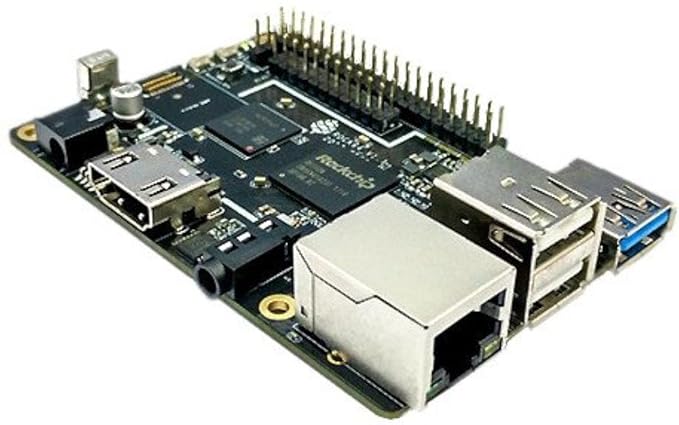
Rock64 Media Board

ROCK64 Single Board Computer

Pros

The Rock64 Media Board comes loaded with a 1.5GHz Rockchip RK3328 64-bit quad-core A53 processor and a Mali-450 MP2 GPU. It ships in three configurations offering 1GB ($25), 2GB ($35), and 4GB ($45) of 1600MHz LPDDR3 RAM.

There’s a bootable eMMC socket alongside the more typical MicroSD, so it’s possible to add 16GB ($14), 32GB ($19), or 64GB ($31) directly to the board

Cons

Unfortunately the Rock64 doesn’t include wireless functionality, so you’ll have to add a USB dongle. There’s also no DSI (display) and CSI (camera) interfaces

$24.95 – Check Current price at Amazon

More mini-pc options – Intel NUC 9 Extreme Kit , MSI – Cubi 5 

the smallest pc with wifi and graphic card and windows

Get more of you gadget news at @http://www.gadgetaustralia.com/

Filed Under: 2012, Apple, Computer, Gadgets Tagged With: Linux PC, Media center PC, Mini PC, Rasberry, Smallest Computer, UK

Smartphone Oddities You Didn’t Know You Needed

August 5, 2020 by admin Leave a Comment

stock market crash with covid and stock picks recovery

Smartphones have been a part of life for a long time, yet there are a few things that might surprise you. The following are a few accessories you can use with your smartphone.

Fun and Useful Cases

Having a case for your phone seems pretty common nowadays. It has probably prevented your phone from breaking when you’re walking on a trail in Australia, but cases can be more if you let them.

Yes, of course, they can still provide the layer of protection that phone cases have always been able to provide, but there are companies out there offering great oddities. For example, there are cases with a pop-up socket you can pop up when you need to stick your phone on certain surfaces to take pictures or record videos.

Portable and Cool Keyboard

Many people are working from all sorts of places, and some folks are using smartphones to complete their work. The problem is it can get a little difficult when the workload increases and all you’ve got is your texting fingers.

The good thing is you can get yourself a portable keyboard that’s compatible with your smartphone. There are many of these out there, and they are reasonably priced. What makes these pretty cool is they aren’t only lightweight but also foldable. They’ll fit in your pocket as easily as your smartphone. All you have to do is make sure you’re getting the keyboard that works with your operating system, be it Android or Apple.

UV Smartphone Sanitizer

The smartphone attracts all sorts of bacteria and viruses. There’s not much you can do about that, and that’s no good. The problem is you can’t just wash your phone with soap and water. You can’t really spray it with antibacterial spray. Thankfully, someone thought about that for you and created a UV sanitizer specifically for smartphones.

No need to worry about damaging your phone with moisture. All you have to do is turn this little device on, and place your phone inside. The UV lights get rid of viruses and bacteria in about a minute. Then, you can safely handle your phone again. The peace of mind this device can give you is priceless, especially since there are many sicknesses out there.

Great Mini Projector

You never know when you might want to watch something with others. You can kinda do it with a smartphone, but it can be uncomfortable, and your screen is small. There’s a solution to this little problem, and it’s a projector. You might be thinking a projector will be too much trouble.

No one would carry around those large devices, but that’s probably because you don’t know about mini projectors. These were made for smartphones and are quite small. You need one connector, and you can share what you are watching with everyone around you. You can watch movies, clips, and you can play games on a larger screen effortlessly, and that’s great.

Professional Stabilizer for Filming

Most people have seen that fluid and flawless way of filming. It’s in movies, shows, and some clips. The filmmaker can shoot all sorts of moving scenes, and the image looks perfect all of the time. One way this is possible is by using a stabilizer.

You might think this tool is only for professional filmmakers, but that’s not the case. There’s a growing number of stabilizers designed specifically for smartphones. This means you can film better videos using nothing but your smartphone. Those who love film or simply want to shoot better videos should consider investing in a stabilizer.

Charging Up Wirelessly

Everyone has to charge their phones, which seems pretty straight forward but not anymore. Those who want to take charging to the next level might want to consider wireless chargers. These are powerful devices that can charge a phone and other smart devices in a short period.

On top of that, these wireless chargers require you to place the device on the mat rather than connect it to cables. Most of the time, a cable gets messed up because of all the pulling, twisting, and bending. You won’t need to worry about any of that with a wireless charger. The prices for these chargers vary, so just find one that works with your budget.

These are just some interesting accessories you can consider, but there’s no telling what else is out there. Be willing to ask questions to find out what is possible with your smartphone.

Filed Under: Australia, Gadgets, Software Tagged With: Phone, smartphone app

Top tips to choosing a Good NBN modem router

March 2, 2020 by admin 6 Comments

[et_pb_section fb_built=”1″ _builder_version=”3.22″ custom_padding=”||0px|” z_index_tablet=”500″][et_pb_row _builder_version=”3.25″ background_size=”initial” background_position=”top_left” background_repeat=”repeat”][et_pb_column type=”4_4″ _builder_version=”3.25″ custom_padding=”|||” custom_padding__hover=”|||”][et_pb_post_title title=”off” meta=”off” featured_placement=”above” admin_label=”Post Title” _builder_version=”4.3.4″ z_index_tablet=”500″][/et_pb_post_title][et_pb_text admin_label=”intro” _builder_version=”3.27.4″ background_color=”rgba(237,240,0,0.55)” custom_margin=”0px|5px|5px|5px” custom_padding=”0px|10px|10px|10px” z_index_tablet=”500″ border_radii=”on|10px|10px|10px|10px” border_width_all=”2px” border_color_all=”rgba(12,113,195,0.75)” border_style_all=”groove”]

Your signing for the NBN which will inmost cases give you much faster speeds that you currently have and so having a good modem to distribute that fast internet speed around your house is a good idea.  You will need an NBN compatible modem if you were on the old ADSL connection with an older modem.

Read about –> NBN internet providers and plans in my last blog post, in this one  we look at the best picks for a good modem router for your NBN connection

The good thing is most NBN internet providers give you a free NBN modem if you sign up with them for an 18 month or longer internet plan. Some of them don’t and so you might have to purchase your NBN modem from the shop or pay extra to the provider for the modem.

[/et_pb_text][et_pb_text _builder_version=”4.3.4″ custom_margin=”5px|5px|5px|5px” custom_padding=”10px|10px|10px|10px” z_index_tablet=”500″]

Which is the best modem for NBN ?

Popular good modem brands in Australia are Netgear, Dlink, Netcomm, Tplink, ASUS, Draytek and Billion among others.

To keep it short, a good NBN modem should be a modem plus router – so that I can recive internet and can also distribute WIFI around the house. It should have at least three minimum ethernet points, one USB storage and a backup USB wifi dongle or 3g/4g/5g sim/dongle would be wishful.

Prices for modems routers In Australia
Generally a good nbn compatible modem can start from $120 onwards , but expect to get a decent one anywhere between $150 to $400 . The $400 are normally top of the range ones in looks and speeds too. Most of them are modem  plus routers.

I have made many lists before (for eg myhosting list for starting a website/blog ) .. Below I will give a list of some good modems for the NBN on the market before we get into the nitty gritty of what is the good features to look out for in selecting a modem

[/et_pb_text][/et_pb_column][/et_pb_row][et_pb_row _builder_version=”3.25″ background_size=”initial” background_position=”top_left” background_repeat=”repeat”][et_pb_column type=”4_4″ _builder_version=”3.25″ custom_padding=”|||” custom_padding__hover=”|||”][et_pb_divider _builder_version=”3.21.4″ z_index_tablet=”500″][/et_pb_divider][et_pb_toggle title=”Good routers for the NBN” open=”on” _builder_version=”3.21.4″ title_level=”h2″ title_font=”|700||on|||||” background_color=”rgba(13,210,224,0.63)” z_index_tablet=”500″]

  1. TP Link TD-VG5612
  2. TP-Link Archer VR2800
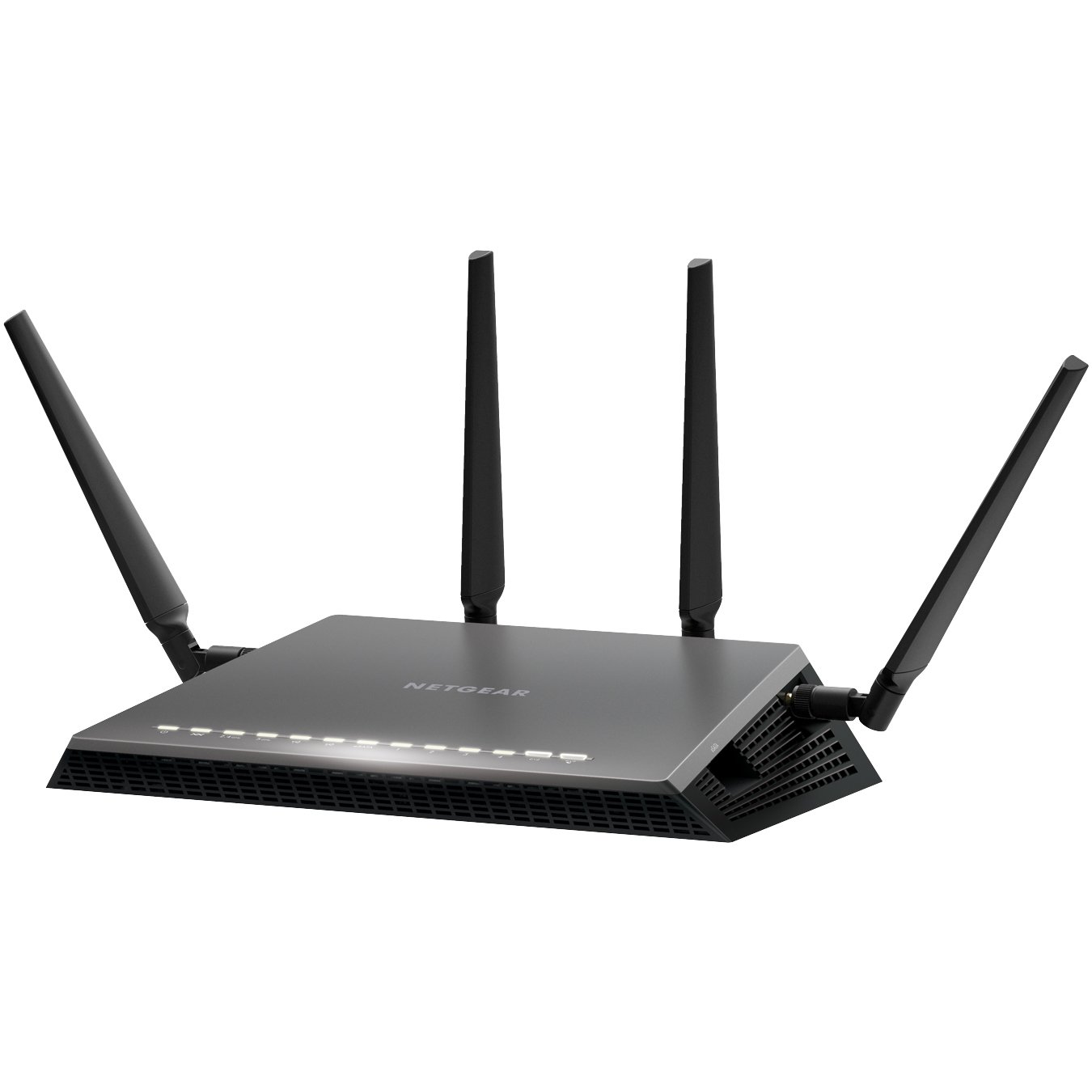
  3. Netgear Nighthawk X4S D7800
  4. Netgear D6400
  5. ASUS DSL-AC56U
  6. ASUS DSL-AC68U
  7. D Link DSL-2877AL
  8. D Link DSL-2885A
  9. Draytek 2860n/n+/Vn/ac/Vac
  10. Draytek 2760
  11. Netcomm NF4V
  12. Netcomm NF17ACV
  13. Asus ROG GT-AX 11000

[/et_pb_toggle][et_pb_tabs active_tab_background_color=”rgba(166,216,119,0.4)” admin_label=”Modem Desc Tabs” _builder_version=”3.21.4″ custom_padding=”10px|10px|10px|10px” z_index_tablet=”500″ border_color_top=”#e01106″][et_pb_tab title=”TP Link TD-VG5612″ _builder_version=”3.21.4″ tab_text_color=”rgba(224,51,42,0.58)” tab_text_shadow_style=”preset2″]

tp link modem router

TP-Link TD-VG5612 Wireless router – 4-port switch

Brand: TP-Link
Connectivity: Wireless
Wireless standard: Wireless-N, Wireless-G
Encryption type: WEP, WPA, WPA2
Modem type: DSL Modem
Aerial: Internal
 
Features
  • Firewall protection
  • DMZ port + NAT support
  • Auto-negotiation, IGMP snooping, traffic shaping
  • Print server, MAC address filtering, VPN passthrough
  • URL filtering, parental control, IP address filtering
  • File sharing, Access Control List (ACL) support, Quality of Service (QoS)
  • Virtual server support, Wi-Fi Protected Setup (WPS), IPSec pass through
  • Samba support, FTP server, port forwarding, UPnP Media Server
  • Bandwidth control, DHCP relay, Stateful Packet Inspection Firewall (SPIF)
  • DNS relay, static routing, Multicast filtering function

Software / System Requirements

Software Included Drivers & Utilities
OS Required Apple Mac OS, Linux, Microsoft Windows Vista / XP / 7 / 8
 
Included Accessories
ADSL splitter
Cables Included 1 x modem cable 1 x network cable

[/et_pb_tab][et_pb_tab title=”TP-Link Archer VR2800″ _builder_version=”3.21.4″]

TP-Link Archer VR2800 Wireless router – 4-port switch The Archer VR2800 DSL modem router supports super fast VDSL or ADSL broadband of up to 100 Mbps and other connections.

Additional features

  • Cable Modem or Fiber Modem compatible
  • Two USB 3.0 ports supporting 3G/4G dongle connections
  • Dedicated processor for each band to manage Wi-Fi traffic
  • 1GHz dual-core CPU.

[/et_pb_tab][et_pb_tab title=”Netgear Nighthawk X4S D7800″ _builder_version=”3.21.4″]

The Netgear’s Nighthawk X4S boasts a dual-core 1.4GHz processor to handle the activity passing through it and a chipset capable of working in the 802.11ac network technology, which is also backwards compatible with the 802.11a/b/g/n networks.

Additional features

  • Quad Stream AC2600 WiFi for speeds up to 2.53Gbps (800+1733Mbps)
  • Next generation Wave2 WiFi
  • Dual Core 1.4GHz processor boosts performance for gaming and streaming
  • Built in high speed modem compatible with VDSL, VDSL2, ADSL, ADSL2, ADSL2+
  • Gigabit Ethernet WAN port for universal Internet service compatibility

Price range: From $315 to $350

[/et_pb_tab][et_pb_tab title=”Netgear D6400″ _builder_version=”3.21.4″]

The Netgear AC1600 DSL modem router provides a fast VDSL modem for fibre broadband and also works with ADSL connections.

It is a integrated modem and router as most models and you won’t need separate hardware from your service provider. It can handle homes with up to 10 devices.

Additional Features

  • It supports transfer speeds of up to 1300 Mbps.
  • It uses Beamforming technology to provide a large, reliable wireless range.
  • There are 2 USB 2.0 ports built-in to this router so you can connect a printer or a portable hard drive then access it wirelessly across your network.
  • You can use the Netgear Genie app to control and maintain your network.
  • This router supports parental controls so you can set up restrictions to your web access.

Price Range: From $197 to $243

https://www.youtube.com/watch?v=7jtYN9RP0SQ

[/et_pb_tab][et_pb_tab title=”ASUS DSL-AC56U” _builder_version=”3.21.4″]

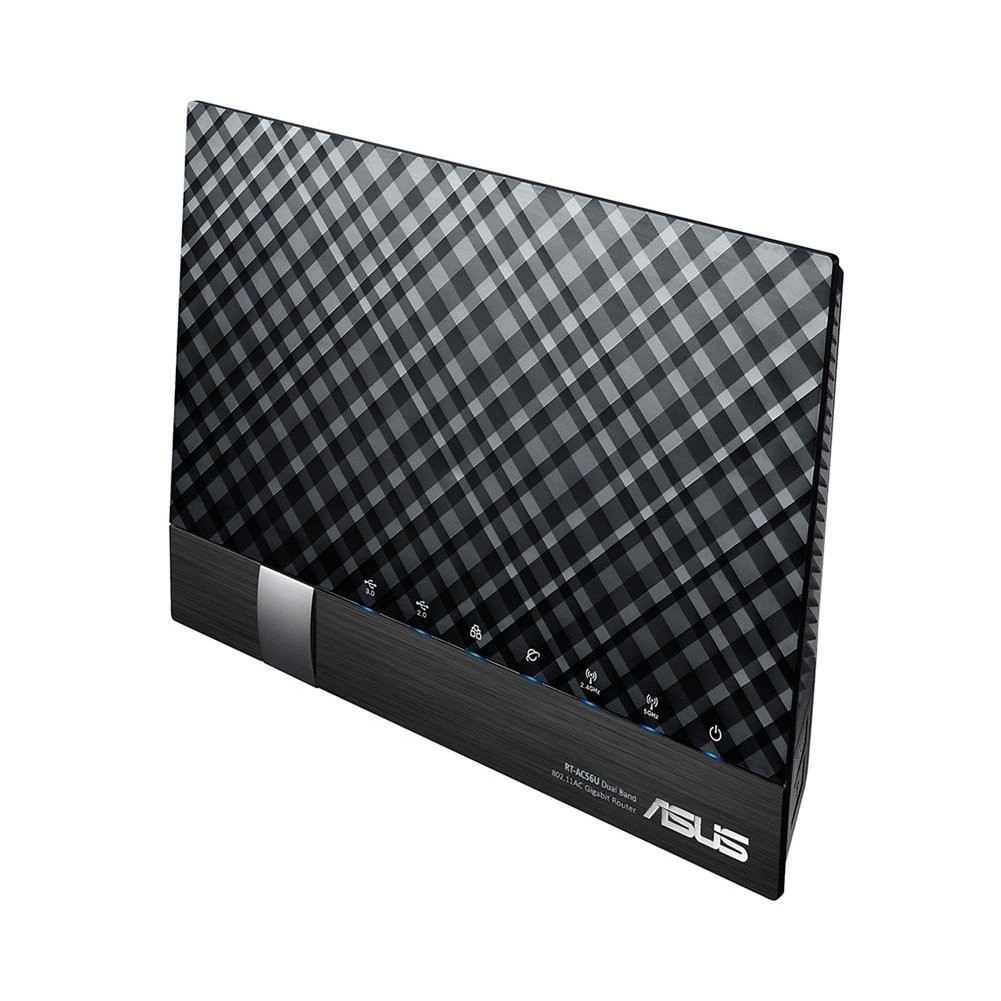
The ASUS DSL-AC56U supports  as slew of features and technologies making this versatile modem router future proof. it supports  high speeds and  a detailed graphical interface to adjust  all your settings to your needs.

Additional Features

  • Concurrent Dual Band: 867Mbps on 5GHz and 300Mbps on 2.4GHz
  • Two WAN ports for DSL and Ethernet
  • Gigabit Ethernet ports 
  • Dual multi-purpose USB ports support file sharing, printer sharing, media streaming and 3G/4G support
  • VDSL/ADSL WAN multi service for IPTV support
  • PPTP VPN server and VPN client support
  • Download Master and enhanced media server let you download and stream anywhere
  • Enhanced signal range and stability with ASUS AiRadar using ASUS RF fine-tuning giving you extended coverage, dynamic data speed increases, and enhanced stability.
  • Ability for DSL, Ethernet or 3G/4G LTE Internet connections
  • Gigabit Internet browsing with hardware NAT
  • Ability to add external storage, printers, and other devices directly to your network
  • DSL ASUSWRT allows you to setup, monitor, and control network applications all in one intuitive area. 
  • Online multitasking at up to 300,000 sessions,gives you 20 times the capacity of mainstream routers. More data sessions translate into quicker and buffer-less HD streaming plus lag-free online gaming.
  • VPN server and VPN client support

Price Range: From $165 to $269

[/et_pb_tab][et_pb_tab title=”ASUS DSL-AC68U” _builder_version=”3.21.4″]


The ASUS DSL-AC68U is fast with combined dual-band data rates of up to 1900 Mbps. It is compatible with ADSL2/2+, ADSL, VDSL2, fiber and cable services. The easy-to-use ASUSWRT graphical user interface unlocks the power of the DSL-AC68U giving robust control to optimize your network for you. 30-second set-up and easy traffic management means even network newbies can enjoy its sophisticated features, while power users will love its IPv6 support, multiple wireless SSIDs and secure VPN access.

Additional Features

  • Compatible with ADSL2/2+, ADSL, VDSL2, fiber and cable services
  • 150% wider Wi-Fi coverage* Three external high-gain antennas 
  • Intuitive ASUS Router app -Manage your network anywhere
  • Enterprise-grade security for your home network -ASUS AiProtection with Trend Micro™ 
  • VPN server and client support
  • Dual WAN ports
  • Multi-purpose USB 3.0 port

Price Range: From $225 to $269

[/et_pb_tab][et_pb_tab title=”D Link DSL-2885A” _builder_version=”3.21.4″]

D-Link DSL-2885A Wireless Modem Router – 4-port switch
Dlink DSL-2885A Dual Band AC1200 Wireless Modem Router
 
The Dual Band Wireless AC1200 Gigabit ADSL2+/VDSL2 Modem Router helps with multiple connection options for sharing your high speed internet connection with a multitude of both wireless and wired devices. Dual band, NBN compatible, and capable of speeds up to 1200Mbps makes it a internet ready device for your home.
 
Details
Brand: D-Link
Connectivity: Wireless
Wireless standard: Wireless-AC, Wireless-N, Wireless-G
Feature: Dual Band, Gigabit Ethernet
Encryption type: WPA, WPA2
Modem type: DSL Modem
 
Additional Features:
  • Dual Band Wireless AC1200 Technology
  • Integrated ADSL2+ / VDSL2 Modem
  • NBN/UFB Ready (Dedicated Gigabit WAN port)
  • 4 x Gigabit Ethernet LAN Ports
  • Two USB 2.0 Ports for Storage, File Sharing or 4G USB modem
  • Supports AutoZoning technology

Price range: From $149 to $175

Visit official website

[/et_pb_tab][et_pb_tab title=”Draytek Vigor 2862 Vac” _builder_version=”3.21.4″]

Draytek has a  range of xDSL routers series which include VDSL2, ADSL2/2+ and G.SHDSL models to meet different infrastructure. WAN failover/load-balancing Bandwidth Management/Firewall/VPN features are available in most models to ensure a secure & reliable network.

They have discontinued quite a few models, list available below.

Draytek Vigor 2862 Vac

Vigor2862 Series features comprehensive firewall and content security management (CSM) to secure the local network. Vigor2862 Series is a VDSL2/ADSL2+ Security Firewall router which is compatible with variants of ADSL and VDSL. All the models have an RJ-11 DSL port, and a Gigabit Ethernet WAN port which can be used with a cable-modem to connect to a second line for load balancing or failover, there are also two USB ports which can work with 3G/4G/LTE USB modems to add wireless connectivity.

Additional Features

VDSL2 or ADSL2/2+  
Gigabit WAN  
3G / 4G LTE USB
Gigabit LAN 4
VPN Tunnels 32
WLAN (AC2000) 11ac
Concurrent Dual Band  
VoIP (2xFXS, 1xPSTN)


Current Selling models in the Vigor 2862 Series are

  • Vigor 2862
  • Vigor 2862n
  • Vigor 2862 AC
  • Vigor 2862 VAC

There are also four models in the Vigor 2762 Series and one in Vigor 2832 Series and one in Vigor 2710 e Series.

Discontinued Draytek Vigor model numbers

  • Vigor2860n
  • Vigor 2860 Ln
  • Vigor 2860 L
  • Vigor 2860 Vac (AC1600)
  • Vigor 2860 ac (AC1600)
  • Vigor2860Vn-Plus
  • Vigor2860

[/et_pb_tab][et_pb_tab title=”Netcomm NF17ACV” _builder_version=”3.21.4″]

Netcomm NF17 ACV VDSL/ADSL Dual Band Router

NF17ACV Side Angle

If you end up signing with Aussie Broadband for a NBN connection and paying for a modem,  this can  be the Modem Router you get. It looks pretty similar in design to the  TP Link model  TPG bundles free with their NBN connection.

Aussie Broadband Set up guide for this model –> Setup Guide

The NF17ACV is a smart residential VDSL2/ADSL2+ gateway designed to connect to VDSL and ADSL networks as well as nbn and UFB fibre services to deliver the fastest available broadband speeds and performance at home. You can connect up to 2 USB devices, access, and share even more A/V media files and content in real time.

Product details
Connectivity: Wireless
Wireless standard: Wireless-AC, Wireless-N, Wireless-G
Feature: Dual Band, Gigabit Ethernet
Modem type: DSL Modem
 
 
Additional Features
  • Fully featured VDSL2 / ADSL2+ gateway
  • 4 x Gigabit Ethernet 10/100/1000 LAN ports
  • nbn and UFB ready ultra-fast connection to nbn and UFB fibre network
  • 1 x 10/100/1000 Gigabit Ethernet WAN port
  • VoIP feature for HD quality voice calls – connect up to 2 telephones
  • Next generation WiFi 802.11 AC1600, dual band
  • 2x WPS push buttons for 2.4GHz and 5GHz bands
  • Access and share media and file content across the wireless home network
  • Device performance monitoring and management through TR-069
 
Price Range: From $90 to $199

[/et_pb_tab][et_pb_tab title=”Asus ROG GT-AX11000 ” _builder_version=”3.21.4″]

Its a Modem router built for gaming.

rog rapture

Its the first 10 Gigabit Wi-Fi router with a quad-core processor and 2.5G gaming port

AX routers are the emerging technology in modem routers. The Asus ROG Rapture GT-AX 11000 ($450) is the first of the new Wi-Fi 6 class of router. The ROG Rapture GT-AX11000 brings in the new 802.11 ax routers in style and speed.

It is built and designed with gamers in mind. The range and speeds are what this is good for and the throughput rises with the distance, making it the ideal modem router to fill a large house with Wi-Fi.

Product details
Brand: ASUS
Connectivity: Wireless
Feature: Dual Band, Gigabit Ethernet

Additional Features

  • Next-Gen WiFi Standard – 802.11ax WiFi standard for better efficiency, throughput and range.
  • Ultrafast WiFi Speed – 11000Mbps WiFi speed to handle even the busiest network with ease.
  • Triple-level Game Acceleration – Accelerate game traffic every step of the way – from device to game server.
  • Battle-ready-hardware – 1.8GHz quad-core CPU and 2.5GBase -T port for ultimate performance.
  • Front-line Network Security – Neutralize internet threats before they hit your network.

Price Range: From $701 to $804

https://www.asus.com/au/Networking/ROG-Rapture-GT-AX11000/

[/et_pb_tab][/et_pb_tabs][/et_pb_column][/et_pb_row][/et_pb_section][et_pb_section fb_built=”1″ _builder_version=”3.22″ custom_margin=”0px||0px|” custom_padding=”0px||0px|” z_index_tablet=”500″][et_pb_row _builder_version=”3.25″ custom_margin=”0px||0px|” custom_padding=”0px||0px|” z_index_tablet=”500″][et_pb_column type=”4_4″ _builder_version=”3.25″ custom_padding=”|||” custom_padding__hover=”|||”][et_pb_divider _builder_version=”3.21.4″ z_index_tablet=”500″][/et_pb_divider][/et_pb_column][/et_pb_row][/et_pb_section][et_pb_section fb_built=”1″ _builder_version=”3.22″][et_pb_row _builder_version=”3.25″ custom_margin=”0px|||” custom_padding=”0px|||” z_index_tablet=”500″][et_pb_column type=”4_4″ _builder_version=”3.25″ custom_padding=”5px|5px|5px|5px” custom_padding__hover=”|||”][et_pb_text _builder_version=”3.27.4″ background_color=”rgba(151,216,91,0.49)” custom_margin=”0px||0px|” custom_padding=”5px|5px|5px|5px” z_index_tablet=”500″ border_radii=”on|5px|5px|5px|5px” border_color_bottom=”rgba(12,113,195,0.61)”]

Price ranges for modems
Generally a good nbn compatible modem can start from $60 onwards, but expect to get a decent one anywhere between $120 to $1000+. The $400+ price range modems are normally top of the range ones in looks and speeds too. Most of them are modem + routers.

[/et_pb_text][/et_pb_column][/et_pb_row][/et_pb_section][et_pb_section fb_built="1" specialty="on" padding_top_1="0px" padding_top_2="0px" padding_bottom_1="0px" padding_bottom_2="0px" _builder_version="3.22" custom_margin="0px||0px|" custom_padding="0px||0px|" z_index_tablet="500"][et_pb_column type="1_2" _builder_version="3.25" custom_padding="|||" custom_padding__hover="|||"][et_pb_image src="https://www.digitalgrog.com.au/wp-content/uploads/2019/02/5g-wifi-in-australia.png" align_tablet="center" align_phone="" align_last_edited="on|desktop" _builder_version="3.23" z_index_tablet="500"][/et_pb_image][/et_pb_column][et_pb_column type="1_2" specialty_columns="3" _builder_version="3.25" custom_padding="|||" custom_padding__hover="|||"][et_pb_row_inner admin_label="Row" _builder_version="3.25"][et_pb_column_inner saved_specialty_column_type="1_2" _builder_version="3.25" custom_padding="|||" custom_padding__hover="|||"][et_pb_text _builder_version="3.27.4" z_index_tablet="500"]

How do I know if I need a New Modem for my NBN connection?

If you have had your modem for more than 3 years its likely that you will have to get a new modem for your NBN connection.

Check online or on the Modem box/paperwork if they mention that your modem is VDSL and VDSL2 compatible. If it is then there is a good chance your modem will work with your new NBN connection.

It is best to check with your new provider if your current modem will work with their internet connection before signing up with them.

[/et_pb_text][/et_pb_column_inner][/et_pb_row_inner][/et_pb_column][/et_pb_section][et_pb_section fb_built=”1″ _builder_version=”3.22″ custom_margin=”0px||0px|” custom_padding=”0px||0px|” z_index_tablet=”500″][et_pb_row _builder_version=”3.25″ background_size=”initial” background_position=”top_left” background_repeat=”repeat”][et_pb_column type=”4_4″ _builder_version=”3.25″ custom_padding=”|||” custom_padding__hover=”|||”][et_pb_divider _builder_version=”3.21.4″ z_index_tablet=”500″][/et_pb_divider][/et_pb_column][/et_pb_row][/et_pb_section][et_pb_section fb_built=”1″ _builder_version=”3.22″ custom_margin=”0px||0px|” custom_padding=”0px||0px|” z_index_tablet=”500″][et_pb_row column_structure=”1_2,1_2″ _builder_version=”3.25″ background_size=”initial” background_position=”top_left” background_repeat=”repeat”][et_pb_column type=”1_2″ _builder_version=”3.25″ custom_padding=”|||” custom_padding__hover=”|||”][et_pb_blurb title=”What is the difference between modem and router?” use_icon=”on” font_icon=”%%176%%” _builder_version=”3.21.4″ z_index_tablet=”500″]

A modem is the device that takes your telephone/internet line and makes it ready to use for internet purposes.

The router is the device that takes the telephone line converted to internet and enables it to be distributed via wires and wifi all over the house/designated area to different devices.

[/et_pb_blurb][et_pb_text _builder_version=”3.27.4″ z_index_tablet=”500″]

Works with Google Home /Alexa

While most modems and routers will connect to your google home and Alexa this router allows you to control your networking commands as well.

If you want a Wifi router that works with google Home and alexa to control your home using voice commands for home networking then the NIGHTHAWK SMART WIFI ROUTER-   R7000 model is your router of choice. Its not a modem.

https://www.netgear.com.au/home/products/networking/wifi-routers/R7000.aspx

[/et_pb_text][/et_pb_column][et_pb_column type=”1_2″ _builder_version=”3.25″ custom_padding=”|||” custom_padding__hover=”|||”][et_pb_blurb title=”Do I need both a modem and router?” use_icon=”on” font_icon=”%%272%%” _builder_version=”3.21.4″ z_index_tablet=”500″]

Today many companies just provide a combined modem + router so you have them both in one device.

The higher priced modem routers enable higher speeds for wired as well as wifi between multiple devices and have better coverage area.

To give you an idea of how people started using modems/routers. Initially when people started using modems/internet, they just had one small modem hooked up to one pc in the house. Most people used that one pc to browse the internet.

Then people started hooking up that modem to a separate device called router, so that they could distribute that internet to multiple computers in the home. Then soon the internet was also distributed via wifi through routers to different devices in your home.

Today you can get a modem + router bundled in one device, doing all these jobs and still called a modem 😉

[/et_pb_blurb][et_pb_blurb title=”ADSL VS VDSL ?” use_icon=”on” font_icon=”%%136%%” _builder_version=”3.21.4″ z_index_tablet=”500″]

With nbn already here you need a modem router that will do your NBN speeds justice and a VDSL (Very-high-bit-rate digital subscriber line ) or VDSL2 ready modem does just that.

Most new NBN ready modems cater to all kinds of internet connections  including a VDSL connection or a fibre to the premises box.

In short ADSL (Asymmetric digital subscriber line) gives slower speeds than VDSL and that’s why most nbn connections deliver internet via VDSL.

A VDSL or VDSL2 Modem will cover all kinds of nbn connections if you got fibre to the node or fibre to your home the VDSL modem will distribute that internet with optimum speed in your house.

[/et_pb_blurb][/et_pb_column][/et_pb_row][/et_pb_section][et_pb_section fb_built="1" _builder_version="3.22" custom_margin="0px||0px|" custom_padding="0px||0px|" z_index_tablet="500"][et_pb_row _builder_version="3.25" background_size="initial" background_position="top_left" background_repeat="repeat"][et_pb_column type="4_4" _builder_version="3.25" custom_padding="|||" custom_padding__hover="|||"][et_pb_divider _builder_version="3.21.4" z_index_tablet="500"][/et_pb_divider][/et_pb_column][/et_pb_row][/et_pb_section][et_pb_section fb_built="1" _builder_version="3.22"][et_pb_row _builder_version="3.25" background_size="initial" background_position="top_left" background_repeat="repeat"][et_pb_column type="4_4" _builder_version="3.25" custom_padding="|||" custom_padding__hover="|||"][et_pb_testimonial portrait_url="https://www.digitalgrog.com.au/wp-content/uploads/2018/09/toys-are-us.png" _builder_version="3.21.4" z_index_tablet="500" border_color_top="#e02b20" border_width_all_portrait="2px" border_color_all_portrait="#e02b20"]

More Modems 

Some more awesome modems reviewed including new AX  featured modems and mesh systems and nodes. Click to show.

[/et_pb_testimonial][et_pb_toggle title=”14. TP-Link Archer AX6000 review” admin_label=”Toggle TP-Link Archer AX6000 review” _builder_version=”3.21.4″ z_index_tablet=”500″]

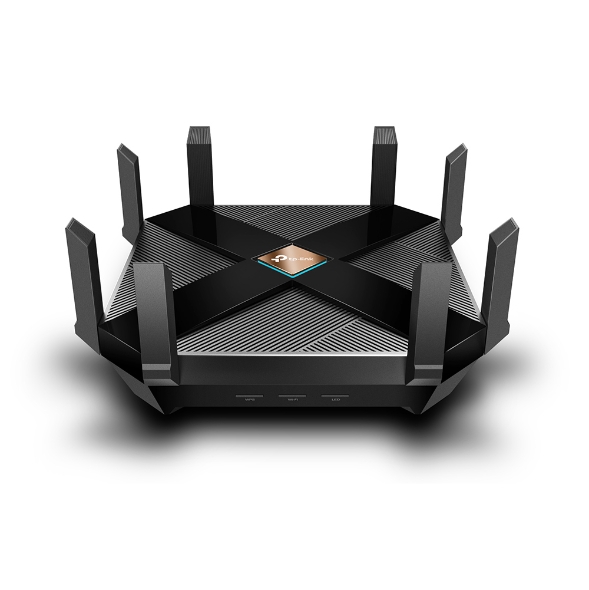
TP-Link Archer AX6000


What is 802.11ax Wi-Fi

Fast. High Efficiency.

Gaming, 4K/8K streaming, smart home devices, and AR/VR all compete for network resources, creating lag and crowding your network. To solve this problem,

802.11ax (also known as Wi-Fi 6), a next-genhigh-efficiency Wi-Fi standard, was created. Now, you can simultaneously connect more devices and enjoy the optimum speed for each of them.

AX Wi-Fi  aims to enhance wireless network performance by boosting speed and responsiveness better than MU-MIMO . The key improvement is called orthogonal frequency division multiple access (OFDMA) which increases connection capability in a single 20MHz channel from 52 (AC wireless) to 234 and also uses band steering to automatically ensure that less-crowded bands are used. The new Samsung Galaxy S10 smartphones are currently fully compatible to use this service. 

This system gives good speeds while playing online PC games and watching YouTube on two old Android tablets, however its expected that performance will drop off with Mesh systems and Wi-Fi extenders.  TP-Link’s Archer AX6000 achieves good speeds and will surely compete with mesh networks modem setups.

Its got a  1.8GHz quad-core processor on-board for its serious computing needs. The AX6000 has eight Gigabit Ethernet ports. and the WAN port supports 2.4 Gbps connections. It supports  two USB 3.0 ports: Type-A and Type-C. 

It also features built-in Trend Micro Security features, which offer antivirus and family filtering options including the ability to set usage limits and bed times for different users across multiple devices.

At $499 it’s not cheap, but it’s got all the important features, looks good and performs so well that you likely won’t need to buy other networking equipment for a long time to come.

Price Range: $499 | WWW.TP-LINK.COM/AU/


[/et_pb_toggle][et_pb_toggle title=”15. TP-Link Deco M4 mesh” admin_label=”Toggle TP-Link Deco M4 mesh” _builder_version=”3.21.4″ z_index_tablet=”500″]

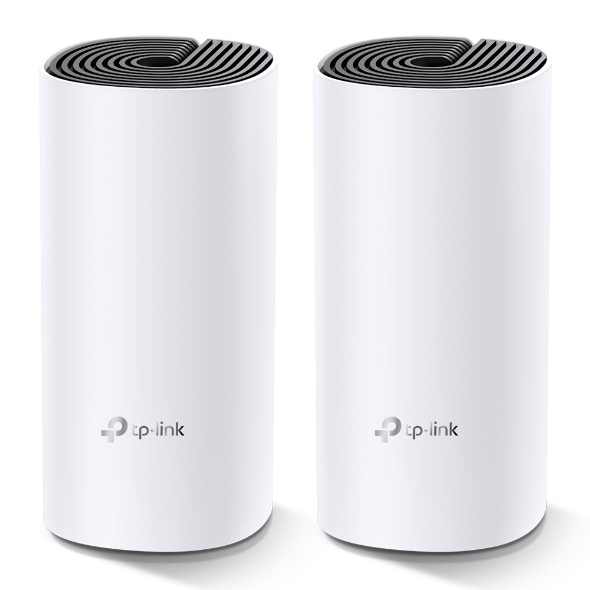
TP-Link Deco M4 mesh (Double Kit)

Deco uses a system of units to achieve seamless whole-home Wi-Fi coverage — eliminate weak signal areas once and for all. TP-Link has launched the new mesh WiFi system, called Deco M4 or Deco M4R. Devices automatically switch between Decos as you move through your home for the fastest possible speeds

Additional Features:

Setting up is simple via the Deco app for this mesh system, it walks your through setting up the network, setting the password, updating the firmware and adding the second node. The app is slick, responsive and intuitive to use. 

  • A Deco M4 two-pack delivers Wi-Fi to an area of up to 260 square metres. 
  • Deco M4 provides fast and stable connections with speeds of up to 1167 Mbps and works with the major internet service provider (ISP) and modem.
  • Deco can handle traffic from even the busiest of networks, providing lag-free connections for up to 100 devices.
  • Parental Controls limits online time and block inappropriate websites according to unique profiles created for each family member.

This can be handy, you can switch the LED lights off and turn nodes into access points.  It’s also has Amazon Alexa and IFTTT smart device compatibility which is a bit future proof. 

The AC1200 Wi-Fi moniker refers to the maximum theoretical throughput of 867Mbps on the 5GHz band plus 300Mbps on 2.4GHz. TP-Link says it can manage 100 different devices but not at the same time. 

Cons for this mesh system 

  • It does not offer a web-based interface for administration
  • It has fewer features than other Deco systems, to make up for the price difference
  • It is not able to fully utilize 1 Gbps internet connections

In summary, this is about as good as an AC mesh system gets. The advanced features will definitely  attract some but the price can be a deterrent. At $230 for a double-pack it’s the cheapest mesh on the market. 

Price Range: $230 | WWW.TP-LINK.COM/AU/

[/et_pb_toggle][et_pb_toggle title=”16. ASUS RT-AX88U” admin_label=”Toggle ASUS RT-AX88U” _builder_version=”3.21.4″ z_index_tablet=”500″]

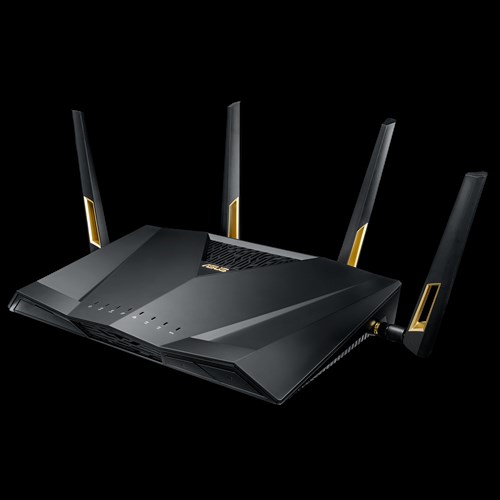
ASUS RT-AX88U

Asus’ new RTAX88U design makes it look like a racer car just about to kick into gear and leave the rest behind and that is not far from the truth with its specs and features we will look at below. Its got a angular black chassis, four large antennae and gold detailing that makes its presence known.

RT-AX88U

This device has got a impressive feature list with eight gigabit Ethernet plus two USB 3.1 ports and integrated malware and family protection tools that are provided by Trend Micro. 

Additional Features:

  • Next-Gen WiFi Standard – 802.11ax WiFi standard for better efficiency and throughput.
  • Ultrafast WiFi Speed – 6000Mbps WiFi speed to handle even the busiest network with ease.
  • Wider Usage and More Convenience – 4 antennas + 8 LAN ports to support more clients at the same time.
  • Commercial-grade Security – AiProtection Pro, powered by Trend Micro™, blocks internet security threats for all your connected smart devices.
  • Better Partner with Mesh System – Compatible with ASUS AiMesh WiFi system for seamless whole-home coverage.

Gamers should be happy with this one. Its got detailed QoS settings which allow you to set the priority of different types of apps (gaming, VoIP, streaming etc). It also boasts more-specific ‘Game Boost’ QoS integrations including WTFast for maximising MMO game stability and LAN Boost which (also) promises to prioritise game traffic performance. 

Future proofing includes web savvy features like VPNs, Alexa plus IFTTT integration with other smart devices.

 At $569 it’s not cheap and at the higher end of price spectrum for  what it provides.

Price Range: From $569 | WWW.ASUS.COM/AU

[/et_pb_toggle][/et_pb_column][/et_pb_row][/et_pb_section][et_pb_section fb_built=”1″ _builder_version=”3.22″][et_pb_row _builder_version=”3.25″ background_size=”initial” background_position=”top_left” background_repeat=”repeat”][et_pb_column type=”4_4″ _builder_version=”3.25″ custom_padding=”|||” custom_padding__hover=”|||”][et_pb_text admin_label=”Speed of your internet” _builder_version=”3.27.4″ z_index_tablet=”500″]

Speed of your internet and WIFI

The speed of your internet to your house connection and within your house will depend on a few different factors as given below.


Your internet connection

Is your connection directly fibre to your house or does it convert to copper line before it reaches your house? Is your internet delivered via cable wires? There are different types of connections FTTN, FTTB, FTTP, FTTC and HFC. Generally, if you have fibre right up to your home or via cable you will get good fast speeds.

Copper line connection

If you have the last bit of your internet connection to your home via copper lines, then where is the nearest Fibre box located where it converts to copper and where is the nearest telephone exchange will also determine your internet speeds.

Your modem/router Wi-Fi speeds

Once the internet reaches your house you should also have a good modem router to distribute the internet via good Wi-Fi speeds. If you got a good speed plan your modem should have good Wi-Fi distribution speeds for around the house. Typically, most modems can distribute Wi-Fi on older 2.4 ghz and 5.0 ghz (faster) channels. Check the speeds 300 Mbps will do for your house as starting speeds.

Normally most providers offer a 8 Mbps, 25 Mbps, 50 Mbps and 100 Mbps plans. I would suggest stick with the 50 Mbps plan for decent speeds. If you got fibre connection right to your house and the nearest exchange is near to your house, you will benefit from a 100 Mbps plan.

[/et_pb_text][et_pb_toggle title=”Coverage of your Wi-Fi signal” open=”on” admin_label=”Coverage of your Wi-Fi signal” _builder_version=”3.21.4″ background_color=”rgba(224,60,51,0.52)” custom_padding=”5px|5px|5px|5px” z_index_tablet=”500″ border_radii=”on|5px|5px|5px|5px”]

Coverage if the Wi-Fi signal used to be a problems with most traditional old modems. The signal got patchy around the front yard or backyard. The new modems do a good job of getting that WIFI signal out there.

[/et_pb_toggle][et_pb_toggle title=”Wifi & Speed – 2.4 ghz vs 5 ghz ” open=”on” admin_label=”Wifi & Speed – 2.4 ghz vs 5 ghz ” _builder_version=”3.21.4″ background_color=”rgba(237,239,88,0.52)” custom_padding=”5px|5px|5px|5px” z_index_tablet=”500″ border_radii=”on|5px|5px|5px|5px”]

Most modem routers or routers have two different channels through which they distribute your Wi-Fi across the house. The 2.4 GHZ channel and the 5GHZ channel, typically the 2.4 GHZ can deliver slower speeds than the 5 GHZ channel.

[/et_pb_toggle][et_pb_toggle title=”Australian standards” open=”on” admin_label=”Australian standards” _builder_version=”4.3.4″ background_color=”rgba(67,137,193,0.52)” custom_padding=”5px|5px|5px|5px” z_index_tablet=”500″ border_radii=”on|5px|5px|5px|5px”]

Make sure you get a modem made by a local known company and you should be right. It will cover all Australian standards. Some well-known local brands are Netgear, Netcomm, Billion, Tplink.

[/et_pb_toggle][et_pb_toggle title=”Speed measuring tools” open=”on” admin_label=”Speed measuring tools” _builder_version=”3.21.4″ background_color=”rgba(224,183,96,0.52)” custom_padding=”5px|5px|5px|5px” z_index_tablet=”500″ border_radii=”on|5px|5px|5px|5px”]

Those crafty little buggers advertise speeds like they are taking you on a free trip to the moon, but do they deliver?

Well you can surely find out. These speed measuring tools below will measure how fast your internet is.

  1.   ooklahttps://www.speedtest.net/ – Speedtest by Ookla is one of the popular speed testing websites  whihc has been around for a while now. Just click the button and it will test your speed. You can also change the server locations to test speeds from different locations.
  2. oz broadbandhttps://www.ozspeedtest.com/ – This website  does  what its intended to do and tests both download speed and upload speed of your Internet connection, whether it be NBN, ADSL, ADSL2, ADSL2+, Cable, 3G, 4G, Wireless or Satellite.
  3. telstrahttps://speedtest.telstra.com/ – This was built for measuring  your telstra internet speed, but can measure pretty much any internet connection for speed.


Its worth noting with speeds for internet ,  The Netflix ISP Speed Index is a measure of prime time Netflix performance on particular ISPs (internet service providers) around the globe, and not a measure of overall performance for other services/data that may travel across the specific ISP network.

This  Asia-pacific Australia netflix  page here shows some of the fastest internet speeds for Australia according to netflix servers and for March 2019, it ranks Telstra , Optus and Iinet  on no#1 , 2 and 3 positions for best speeds.

[/et_pb_toggle][/et_pb_column][/et_pb_row][/et_pb_section][et_pb_section fb_built="1" _builder_version="3.22" custom_margin="0px||0px|" custom_padding="0px||0px|" z_index_tablet="500"][et_pb_row _builder_version="3.25" background_size="initial" background_position="top_left" background_repeat="repeat"][et_pb_column type="4_4" _builder_version="3.25" custom_padding="|||" custom_padding__hover="|||"][et_pb_divider _builder_version="3.21.4" z_index_tablet="500"][/et_pb_divider][/et_pb_column][/et_pb_row][/et_pb_section][et_pb_section fb_built="1" _builder_version="3.22"][et_pb_row _builder_version="3.25" background_size="initial" background_position="top_left" background_repeat="repeat"][et_pb_column type="4_4" _builder_version="3.25" custom_padding="|||" custom_padding__hover="|||"][et_pb_testimonial portrait_url="https://www.digitalgrog.com.au/wp-content/uploads/2019/04/coverage.png" quote_icon_color="rgba(0,0,0,0.65)" _builder_version="3.21.4" use_background_color_gradient="on" background_color_gradient_direction="165deg" background_color_gradient_start_position="40%" background_color_gradient_end_position="88%" z_index_tablet="500" border_color_all="#f76700" border_width_top="2px" border_color_top="#f42800" border_color_all_portrait="#20a31a"]

Gadgets For 

Below are gadgets that can extend your wifi within your home or distribute your internet via existing electrical power-points so that  you can used a wired connection rather than wifi.

[/et_pb_testimonial][et_pb_text admin_label=”Wifi extender to inverter” _builder_version=”3.27.4″ background_color=”rgba(205,176,232,0.27)” custom_margin=”0px|5px|5px|5px” custom_padding=”0px|5px|5px|5px” z_index_tablet=”500″ border_radii=”on|5px|5px|5px|5px”]

Wifi extender

Then Wi-Fi or internet coverage within your house is important. Most new modems have good coverage and will mention this on the box if they can cover a multi storied house. If your existing modem router does not sufficient coverage then you can add a WIFI extender. A Wi-Fi extender can also enable  you to get coverage to your front yard and backyard  so that you can connect to an outdoor tv or Wi-Fi music streaming

The Wi-Fi extender which will pick up your router’s Wi-Fi signal, amplify it, and rebroadcast it. They come in both desktop and plug-in variations, and are relatively easy to install. It is recommended to get a extender of the same company brand of your modem or router to get a better seamless experience.

Power line inverter
We all agree that Wi-Fi coverage is getting better with new technology, but you still cant beat a wired connection stability. If you don’t know about powerline inverters, then this is a good way to get wired internet to your tv or Foxtel box/internet device via a ethernet cable. You don’t need any extra wiring.

How powerline inverter works?

You will get two powerline plugs. You plug one ethernet cable from your modem to your powerline adapter plugged into a power point. What this does is distribute your internet into all the power sockets in your home. You just need to plug in the second powerline adapter into any other power socket in your home and you can connect to the 8nternet.

[/et_pb_text][et_pb_blurb title=”How to set up your router” use_icon=”on” font_icon=”%%222%%” admin_label=”Blurb how to set up” _builder_version=”3.21.4″ background_color=”rgba(224,200,148,0.29)” z_index_tablet=”500″]

The NBN Co states that your router can be one of the most important factors that can make or break your NBN plan, saying a decent router can “transform your experience into something spectacular”.

  • iiNet advises that routers should be equipped with at least 802.11n or 802.11ac Wi-Fi for an NBN service.
  • Devices manufactured before 2009 – potentially only featuring the older 802.11g or b signals – are incapable of supporting the NBN speed capability.


  • Optus: Optus has stated in its Critical Information Summary that it will provide a Wi-Fi modem at no extra cost, while a fee of $40 will apply if you upgrade to an AC modem – one that’s likely capable of gigabit speeds.
  • Telstra: Telstra includes a Gateway modem on 24 month plans. The Gateway modem comes with 4G connectivity, which can be used as a backup in case your NBN connection falters or for instant internet connectivity.
  • iiNet: An iiNet-branded WiFi modem is included on 24 month contracts, while you will need to pay extra for one if opting for a month-to-month contract.

[/et_pb_blurb][/et_pb_column][/et_pb_row][/et_pb_section][et_pb_section fb_built="1" _builder_version="3.22"][et_pb_row _builder_version="3.25" background_size="initial" background_position="top_left" background_repeat="repeat"][et_pb_column type="4_4" _builder_version="3.25" custom_padding="|||" custom_padding__hover="|||"][et_pb_testimonial portrait_url="https://www.digitalgrog.com.au/wp-content/uploads/2019/03/100-Mbps-50-reduced_thumb.jpg" _builder_version="3.21.4" z_index_tablet="500"]

Getting Technical

Below are some Questions and answers (Q &A)  regarding modem, NBN and connection related questions

[/et_pb_testimonial][/et_pb_column][/et_pb_row][et_pb_row column_structure=”1_4,1_4,1_2″ _builder_version=”3.25″ background_size=”initial” background_position=”top_left” background_repeat=”repeat”][et_pb_column type=”1_4″ _builder_version=”3.25″ custom_padding=”|||” custom_padding__hover=”|||”][et_pb_blurb title=”HFC connection modem” use_icon=”on” font_icon=”%%98%%” _builder_version=”3.21.4″ z_index_tablet=”500″]

For a HFC connection you can use the Arris cable modem to connect to your internet. Other modems that you can get are TP-Link C3150, Asus RT-AC68U , $229 or the Netgear Nighthawk R7000 for $220.

If you got a FTTP connection all you will need is a router, don’t need a modem. Above routers for HFC should work for FTTP connection too.

[/et_pb_blurb][/et_pb_column][et_pb_column type=”1_4″ _builder_version=”3.25″ custom_padding=”|||” custom_padding__hover=”|||”][et_pb_blurb title=”FTTC vs FTTN for Modems” use_icon=”on” font_icon=”%%121%%” _builder_version=”3.21.4″ z_index_tablet=”500″]

If you got a FTTC connection or a FTTN connection the modem can be the same as they both use your existing copper wire and phone point. You will need a vdsl modem for both these connections.

However, a FTTC connection will have a NTD box directly outside of your place by the kerb instead of having a node down the street somewhere.

[/et_pb_blurb][/et_pb_column][et_pb_column type=”1_2″ _builder_version=”3.25″ custom_padding=”|||” custom_padding__hover=”|||”][et_pb_blurb title=”Cant connect to Samsung or LG tv over 5GHz” use_icon=”on” font_icon=”%%331%%” _builder_version=”3.21.4″ z_index_tablet=”500″]

Well you got a brand-new modem boasting 5GHz transfer, but find out that your Samsung or LG Tv or device can’t receive your 5GHZ signal.

It’s Quite common!

Your TV and smart devices came with only 2.4GHz band built in compatibility so it won’t be able to connect over 5GHz band in spite of updating your tv to the latest firmware update. The good thing is the 2.4GHZ will work as good as a 5GHZ band.

[/et_pb_blurb][/et_pb_column][/et_pb_row][et_pb_row column_structure=”1_2,1_4,1_4″ _builder_version=”3.25″ background_size=”initial” background_position=”top_left” background_repeat=”repeat”][et_pb_column type=”1_2″ _builder_version=”3.25″ custom_padding=”|||” custom_padding__hover=”|||”][et_pb_blurb title=”How to set up 5GHZ in your house?” use_icon=”on” font_icon=”%%102%%” _builder_version=”3.21.4″ z_index_tablet=”500″]

You need to set up 5GHZ in your modem or router. Your modem device will need to be 5GHZ capable to set it up.  You will need your modem or router login/pass to go to the modem admin settings and turn 5GHZ on.

Refer to your modem brand website or provided setup instructions in box to login to your modem admin settings. Once you set it up properly, if your tv or smart device is 5GHZ capable then you should be able to connect via 5GHZ Wi-Fi SSID. Tip: name the 5GHZ SSID connection starting with letters 5G to find it on your Wi-Fi list.

The old 802 b/g/n vs 802.11ac VS the new 802.11/a/c/n – What’s the difference between the Wi-Fi standards?

The WIFI distribution bands and frequencies b, g, n, ac… wireless standards haven’t had the most logical of alphabetical progressions

Amon the newer announcements first 802.11n was launched then the Wi-Fi Alliance certified the ‘802.11ac’ standard, paving the way for the mass roll-out of ‘wireless ac’ devices. Like past Wi-Fi standards – 802.11ac is backwards compatible with 802.11b, g and n.

As time passes this standard will be built into routers, laptops, tablets, smartphones, televisions and much more.

[/et_pb_blurb][/et_pb_column][et_pb_column type=”1_4″ _builder_version=”3.25″ custom_padding=”|||” custom_padding__hover=”|||”][et_pb_blurb title=”What is the range of the Wifi in 5Ghz and 2.4GHZc channels?” use_icon=”on” font_icon=”%%104%%” _builder_version=”3.21.4″ z_index_tablet=”500″]

To differentiate between these two frequencies, you will need to take the range (coverage) and bandwidth (speed) that both bands provide.

The 2.4 GHz band provides a longer-range coverage(20–30Ft) but transmits data (WIFI) at slower speeds. The 5 GHz band provides less range coverage but transmits data at faster speeds.

The range is lower in the 5 GHz band (10–15 ft) because higher frequencies cannot penetrate solid objects, such as walls and floors. However, higher frequencies allow data to be transmitted faster than lower frequencies, so the 5 GHz band allows you to upload and download files faster.

[/et_pb_blurb][/et_pb_column][et_pb_column type=”1_4″ _builder_version=”3.25″ custom_padding=”|||” custom_padding__hover=”|||”][et_pb_blurb title=”Is 5GHZ band better for distributing Video via WIFI than the 2.4GHZ?” use_icon=”on” font_icon=”%%175%%” _builder_version=”3.21.4″ z_index_tablet=”500″]

With streaming via wifi, the size of the file doesn’t matter, only the data rate matters as you are not trying to transfer the whole thing as fast as possible, you are only to keeping up with the demand.

In the above statement makes senses, if you got a 4KTV it would make more sense for your TV to have 5GHZ band compatibility. The 5GHz spectrum is normally used with the 802.11ac standard on your router modem.

[/et_pb_blurb][/et_pb_column][/et_pb_row][/et_pb_section][et_pb_section fb_built="1" _builder_version="3.22"][et_pb_row _builder_version="3.25" background_size="initial" background_position="top_left" background_repeat="repeat"][et_pb_column type="4_4" _builder_version="3.25" custom_padding="|||" custom_padding__hover="|||"][et_pb_testimonial portrait_url="https://www.digitalgrog.com.au/wp-content/uploads/2019/04/modem.png" quote_icon="off" _builder_version="3.21.4" background_image="https://www.digitalgrog.com.au/wp-content/uploads/2012/08/wifi-signal-wireless.jpg" background_size="contain" background_blend="darken" z_index_tablet="500"]

802.11ac Speed & Range

Learn more below  about Wifi speeds, ranges and  internet distribution technology

[/et_pb_testimonial][et_pb_toggle title=”WIFI SPEED” open=”on” admin_label=”WIFI SPEED” _builder_version=”3.21.4″ background_color=”rgba(224,60,51,0.52)” custom_padding=”5px|5px|5px|5px” z_index_tablet=”500″ border_radii=”on|5px|5px|5px|5px”]

SPEED: 1.3 gigabits per second (Gbps) is the speed most commonly reported with the 802.11ac standard. This translates to 166 megabytes per second and it is much quicker than the 450Mbit per second (0.45Gbps) speeds quoted on the highest performing 802.11n when it was rolled out.

[/et_pb_toggle][et_pb_toggle title=”Modem Router Range” open=”on” admin_label=”Modem Router Range” _builder_version=”3.21.4″ background_color=”rgba(237,239,88,0.52)” custom_padding=”5px|5px|5px|5px” z_index_tablet=”500″ border_radii=”on|5px|5px|5px|5px”]

RANGE: The 802.11ac standard lives entirely in the 5GHz spectrum. They are some rare modem/routers that broadcast 802.11n in 5GHz as well as 2.4GHz.

The 5GHz signals do not actually broadcast as far as 2.4GHz signals. The 5GHz is also good to support the faster speeds of wireless ac.

[/et_pb_toggle][et_pb_toggle title=”Distribution Standard” open=”on” admin_label=”Beamforming” _builder_version=”3.21.4″ background_color=”rgba(67,137,193,0.52)” custom_padding=”5px|5px|5px|5px” z_index_tablet=”500″ border_radii=”on|5px|5px|5px|5px”]

Beamforming: The other factor is that the 802.11ac makes ‘beamforming’ a core part of its spec. Rather than throw out wireless signal equally in all directions like standard frequencies do, WIFI with beamforming detects where devices are and intensifies the signal in their direction(s) which can be good for WIFI distribution.

[/et_pb_toggle][et_pb_toggle title=”Mesh technology for Modems” open=”on” admin_label=” mesh” _builder_version=”3.21.4″ background_color=”rgba(224,60,51,0.52)” custom_padding=”5px|5px|5px|5px” z_index_tablet=”500″ border_radii=”on|5px|5px|5px|5px”]

Mesh: Wirelessmesh networks often consist of mesh clients, mesh routers and gateways. Mesh networking is a type of network in which a device (node) transmits its own data as well as serves as a relay for other nodes. Mesh WiFi or Whole Home WiFi systems consists of a main router that connects directly to your modem, and a series of satellite modules, or nodes, placed around your house for full WiFi coverage. They are all part of a single wireless network and share the same SSID and password, unlike traditional WiFi routers

[/et_pb_toggle][/et_pb_column][/et_pb_row][et_pb_row _builder_version=”3.25″ background_size=”initial” background_position=”top_left” background_repeat=”repeat”][et_pb_column type=”4_4″ _builder_version=”3.25″ custom_padding=”|||” custom_padding__hover=”|||”][et_pb_text _builder_version=”3.27.4″ text_font=”Abhaya Libre|500|||||||” custom_margin=”5px|5px|0px|5px” custom_padding=”15px|15px|15px|15px” z_index_tablet=”500″]

Acronyms

    1. NBN – National Broadband Network
    2. VDSL – Very High Bitrate Digital Subscriber Line
    3. ADSL – Asymmetric Digital Subscriber line
    4. Mbps – Megabits per second (1,000 kilobits of data per second)
    5. LAN – Local Area Network
    6. WAN – Wide Area Network
    7. Gbps – Gigabits per second
    8. HFC – Hybrid Fibre Co-ax
    9. SSID – Service Set identifier
    10. Beamforming – Signal processing Technique
    11. 4k – Ultra HD covers 4K (also called 2160p)
    12. MIMO – Multiple Input Multiple Output
    13. NAS – Network Attached Storage
    14. WPS –  Wi-Fi Protected Setup

[/et_pb_text][et_pb_cta title="Ref links " button_text="Reference Website Links" _builder_version="3.21.4" background_color="#e02b20" z_index_tablet="500"][/et_pb_cta][et_pb_testimonial portrait_url="https://www.digitalgrog.com.au/wp-content/uploads/2019/03/nbn-logo_thumb.png" _builder_version="3.21.4" background_color="rgba(237,240,0,0.44)" z_index_tablet="500"]

Australian standards NBN – https://www.legislation.gov.au/Details/F2018L00814

[/et_pb_testimonial][et_pb_testimonial portrait_url="https://www.digitalgrog.com.au/wp-content/uploads/2019/02/fast-wireless-five-g-internet-au.png" _builder_version="4.3.4" background_color="rgba(237,240,0,0.44)" hover_enabled="0" z_index_tablet="500"]

NBN co Builder guidelines – https://www.nbnco.com.au/develop-or-plan-with-the-nbn/new-developments/design-build-install/cabling

Post originally published in April 2019

[/et_pb_testimonial][/et_pb_column][/et_pb_row][/et_pb_section]

Filed Under: Australia, Gadgets, Internet, Review Tagged With: Broadband, Electronics, ISP

Dns servers Smartyhost to dreamhost

February 9, 2020 by admin 1 Comment

Not all hosting servers and admin panels  for domain names  management are very user-friendly. You will need to know more about  dns server addresses and forwarding  if you bought your domain from one provider and the webhosting from another provider.

Once upon a time I was with smarty host , but not anymore ( they got taken over and i moved to another domain host) [updated Feb 2020]

SmartyHost-australianhosting.gif

dreamhost-wordpress-space-for-websites_thumb.png

So when you want to point  you domain name that your bought with smartyhost  or godaddy to a another providers webhosting account , What do you do  ?

You will need to point  your domain name from the provider to point to Dreamhost (my webhosting server ) or then Bluehost ( if bluehost is your host).  I have some blogs on bluehost too.

So here is some useful info below.


Dreamhost DNS Servers Address

ns1.dreamhost.com

ns2.dreamhost.com

ns3.dreamhost.com

You can use this DNS settings server address above  for your new domain that you bought from any other domain host provider (even Australian domain name provider) to point to your US based hosting serving provider ( like Dreamhost ) where  you are hosting your wordpress blog or website

Dreamhost Plans 2020

pricing for dreamhost hosting

If you are using bluehost hosting partner  then you will input the Bluehost servers addresses  as below ( new name server) which are

ns1.bluehost.com – 74.220.195.31
ns2.bluehost.com – 69.89.16.4

If you are  pointing it to Dreamhost use the above  dreamhost name servers instead

Alternatively you could get both  your  domain name and webhosting both with same provider like dreamhost or bluehost and then you dont have to bother about adjusting any server addresses to get it all working


 Dreamhost Hosting plan prices + Special 2020 Dreamsaver Deal


Hosting Type Monthly Plan Features
Shared  $2.59 month

( + free Domain name )

Free -SSL/TLS Certificates with Let’s Encrypt

Free – Domain Privacy Protection

VPS $13.75 month  Plans include 1 dedicated IP address, 100% network uptime and 24/7 tech support – Unlimited Bandwith and unlimited Domains
Dedicated server $149 month Perfect for High Traffic Websites
Unlimited bandwidth and full Root and shell access
DreamPress $19.95 per month! Automatic WordPress Install & Core Updates

Hosted on Virtual Private Servers

*Prices will differ for monthly Vs yearly plans ( yearly plans offer more discount)


More Website-Hosting deals for our readers from Dreamhost

dreamhost coupons for web hosting 2016


If you are a dreamer  you will like these special prices “Dreamsaver deals”  that we have  as part of our website promotion -Check below.

Get$50 off  our Digitalgrog  Special Dream-saver Deal Shared hosting plans- Click here


Some more useful links  to help you:

  • http://discussion.dreamhost.com/thread-38160.html
  • http://smartyhost-support.custhelp.com changing-dns-records-in-toolkit
  • [Article originally published in 2016]
  • Blue-host – Deals >>the-website-deals-and-discount-for-bluehost-hosting.jpg

How to point your domain name to a Godaddy ultimate hosting account ?

If you have got your domain name with some other domain name registrant company and need to point it to your godaddy ultimate hosting account. Than all you need is the server ip  address of your godaddy hosting account. This should work with most different godaddy hosting accounts apart from ultimate too.

Go to your ultimate hosting account and click on server to get the server ip address (image below)

get godaddy nameserver address

Login to where yo have the domain name registered and got to dns settings,  go to @ host and enter this  ip address you got from your go daddy ultimate server and its done. It should point to  your new hosting account soon.

If the domain name was pointed  to some other host earlier, check that there is no old cname record in the dns setting , if there is then just delete it. The name servers will automatically get refreshed.

Godaddy Deals from $5.50 a month 

If you want to point your domain name from owned from one godaddy account  to point to another  godaddy hosting account too, then you just need to update the server ip address only in which account the name is held  and remove any old cname records as well.  Deals – check out the new godaddy ultimate 3 year deal  which has latest version of secure phpadmin


Filed Under: 2020, Gadgets Tagged With: Bluehost, Dns servers, Domain, Dreamhost, Smartyhost

The surging rise of AI technology

February 5, 2020 by admin 1 Comment

ai 2020 australia

We live in a digital era where technological advancement and rapid digitalisation positively rule. Look around you. Technological influence and rapid digitalisation are present in practically every avenue possible these days. Whether it is the Godox photography accessories available on the market or the introduction of intelligent technology that is geared towards propelling a vehicle without much (if any) manual input from the driver, technological advancement is well and truly here and making impressive impact on an ongoing basis.

There are many forms of technology out there that are impressive and are worth their weight in gold. Some of them are decidedly more valuable than others, purely for the reason that they are more broadly applicable and thus more easily utilised across the board. Of all the impressive feats in technological advancement to date, there is one that is breaking down barriers and performing exceptionally well across the board, even in its early stages. That branch of technology is none other than artificial intelligence.

The surging rise of AI capability and technology

Take the investments and rising interest in AI (artificial intelligence) for what they are worth (which is a lot, by the way). AI capabilities were once merely a plot point in movies and books, but today we are beginning to see AI technology become an instrumental force to be reckoned with in this digital era. This is just the beginning of AI implementation and growth, but it is a promising start that yields a hopeful result for the near future and beyond. We are seeing this technology brace for impact and then exceed expectations time and again.

Why AI is such a powerful branch of modern tech

ai robot

Essentially, AI is such a powerful branch of modern technology because it not only seeks to make life easier, but it actively and consistently takes charge and not only achieves that goal, but exceeds it by effectively taking control of some aspects of life altogether. Of course, this frees up more time for other areas of life to be manually taken care of by human action. This is a positive, and it is a positive that not nearly enough people are talking about or appreciating to its fullest degree.

What we can expect from AI technology in the future

AI is only getting bolder and smarter. This is a theme that is going to prove to be an ongoing theme and it is a theme that we must pay the utmost attention to. A technology like AI that is not only useful but highly intelligent is a technology that is gearing up to change the world in all the best and brightest of ways. From daily tasks to medical and environmental research and exploration, AI technology is a branch of modern technology that is changing the world – and will continue to do so – in all the most positive ways. We should be embracing AI technology entirely and without exception, and we are finally starting to do that.

Filed Under: Gadgets, Technology News Tagged With: Technology education, VIDEO

  • Page 1
  • Page 2
  • Page 3
  • Interim pages omitted …
  • Page 10
  • Go to Next Page »

Primary Sidebar

Recent Posts

  • Underwater Drones for Recording Video and Taking Pictures
  • Why I chose hostgator for blog hosting
  • Top 10 Software Programs For Your Windows PC
  • What you should know before investing in Cryptocurrency and bitcoin
  • The Best Social Media Platforms for Marketing a Gaming App

Recent Comments

  1. Patrick McCormick on How to secure your desktop and laptop with antivirus software
  2. JJ on 20 Top brands with affilate programs to make you money in 2019
  3. JJ on This WPengine Genesis Pro Deal Will Give You 35 Studiopress themes
  4. Lisa Gomes on 16 Ways to Make Money Online Working From Home
  5. KatVine on This WPengine Genesis Pro Deal Will Give You 35 Studiopress themes

Archives

  • June 2022
  • February 2022
  • July 2021
  • May 2021
  • April 2021
  • March 2021
  • November 2020
  • September 2020
  • August 2020
  • July 2020
  • June 2020
  • May 2020
  • April 2020
  • March 2020
  • February 2020
  • January 2020
  • December 2019
  • September 2019
  • August 2019
  • July 2019
  • June 2019
  • April 2019
  • March 2019
  • February 2019
  • January 2019
  • December 2018
  • November 2018
  • October 2018
  • September 2018
  • July 2018
  • June 2018
  • April 2018
  • February 2018
  • January 2018
  • December 2017
  • October 2017
  • September 2017
  • July 2017
  • June 2017
  • May 2017
  • April 2017
  • March 2017
  • February 2017
  • January 2017
  • December 2016
  • November 2016
  • October 2016
  • September 2016
  • August 2016
  • July 2016
  • May 2016
  • April 2016
  • March 2016
  • February 2016
  • January 2016
  • December 2015
  • November 2015
  • October 2015
  • September 2015
  • August 2015
  • July 2015
  • June 2015
  • May 2015
  • March 2015
  • February 2015
  • January 2015
  • December 2014
  • November 2014
  • October 2014
  • September 2014
  • August 2014
  • July 2014
  • June 2014
  • May 2014
  • April 2014
  • March 2014
  • February 2014
  • January 2014
  • November 2013
  • October 2013
  • September 2013
  • August 2013
  • July 2013
  • June 2013
  • May 2013
  • April 2013
  • March 2013
  • February 2013
  • January 2013
  • December 2012
  • November 2012
  • October 2012
  • September 2012
  • August 2012
  • July 2012
  • June 2012
  • May 2012
  • April 2012
  • March 2012
  • February 2012
  • January 2012
  • December 2011
  • November 2011
  • September 2011
  • August 2011
  • July 2011
  • June 2011
  • May 2011
  • April 2011
  • March 2011
  • February 2011
  • January 2011
  • December 2010
  • November 2010
  • October 2010
  • September 2010
  • August 2010
  • July 2010
  • June 2010
  • May 2010

Categories

  • $heldon $ingh
  • 2010
  • 2011
  • 2012
  • 2013
  • 2015
  • 2017
  • 2018
  • 2019
  • 2020
  • 2021
  • 2022
  • Accounting
  • Adsense
  • Affiliate
  • Amazon
  • Anti Virus
  • Apple
  • Apps
  • Asus
  • Aussie
  • Australia
  • Australian
  • Australian Bloggers
  • Australian wordpress hosting
  • Banks
  • Blog-Hosting
  • Blogger
  • Blogger Tool
  • Blogger Tools
  • BloggerTools
  • BuddyPress
  • CARS
  • CDN
  • Celebrity
  • Clickbank
  • Compare
  • Computer
  • Domains
  • Done Deals
  • Ebook
  • Email
  • Facebook
  • Featured
  • Finance
  • Free
  • Gadgets
  • Google
  • Gpost
  • Guide
  • Hackers
  • Hosting
  • India
  • Internet
  • Ipad
  • Kindle
  • Laptop
  • Make money blogging
  • Makemoney online
  • Marketing
  • Melbourne Cup
  • Movies
  • Netbook
  • Network
  • News
  • Online betting account
  • PC
  • Review
  • Search
  • SEO
  • sheldon singh
  • Software
  • Solution
  • Sports
  • Subscribers
  • Taxes
  • Technology News
  • Themes
  • Top 10
  • Tutorial
  • Video
  • Wacky
  • web hosting
  • Website Review
  • Wierd
  • Windows
  • wordpress
  • Wordpress 3.0
  • Wordpress 3.1
  • wordpress themes
  • World cup
  • Wp Answers
  • WP Turbo
  • WPMU

Footer

Design

With an emphasis on typography, white space, and mobile-optimized design, your website will look absolutely breathtaking.

Learn more about design.

Content

Our team will teach you the art of writing audience-focused content that will help you achieve the success you truly deserve.

Learn more about content.

Strategy

We help creative entrepreneurs build their digital business by focusing on three key elements of a successful online platform.

Learn more about strategy.

Copyright © 2026 · Genesis Sample on Genesis Framework · WordPress · Log in