
• Skip to primary navigation
  • Skip to main content
  • Skip to primary sidebar
  • Skip to footer

Digital Grog — Australia’s Tech, Gadgets & Digital Life Unfiltered

Digital Grog is Australia’s go‑to tech blog for sharp reviews, digital trends, AI tools, gadgets, cybersecurity updates, and practical how‑tos covering the latest in Aussie technology

  • About Us
  • Contact Us
  • Block Examples
  • Landing Page

windows 7 Activate

X Change my windows 8 start menu

June 21, 2015 by admin 1 Comment

Like to stay abreast with new technology updates &  windows , but don’t like the windows 8 start menu. You are not alone, windows 8 was a good update,modernised an all – but millions of people have shown their displeasure in how the start menu was totally obliterated and not user friendly with the windows 8 release.

They are two solutions for this,  either wait for windows 10 to release ( which should not be too far away) and hope they make some good changes to this  or then  force your windows 8 to go back to the much friendly Windows 7 start menu.

I have windows 8 on my laptop and  the nutty metro start menu started to drive me crazy, enough for me to look for a solution to make life easier. Here are the two solutions that will get you faster to where you want, when you start up a windows 8 laptop.

windows 7 start menu for windows 8  get it back

Luckily  there re programs out there that can  easily make your windows 8 start menu just like windows7 and also allow you to switch back and forth between them both, if you want to change your mind.

how to get the old windows start menu back

Below i will give you a paid product (stardock) short review  that does this and also  a  FREE version called  (classic shell) that  does a good job with changing the start menu.

Classic shell ( free version) – So what does classic shell do

[from thier website]

Classic Shell™ is free software that improves your productivity, enhances the usability of Windows and empowers you to use the computer the way you like it ( Like windows 7 start menu).
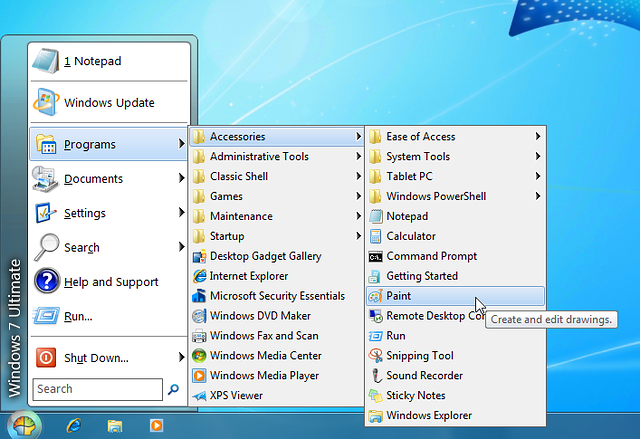
Classic start menu

[imgfrom http://www.classicshell.net/]

The main features are:

  • Highly customizable start menu with multiple styles and skins
  • Quick access to recent, frequently-used, or pinned programs
  • Start button for Windows 7, Windows 8, Windows 8.1 and Windows 10
  • Toolbar and status bar for Windows Explorer

Classic Shell has been in active development for 5 years and has over 25 million downloads.[DOWNLOAD NOW] .Visit their homepage if you like the program and interested in making a donation

Note: Classic Shell works on Windows 7, Windows 8, Windows 8.1, Windows 10 and their server counterparts (Windows Server 2008 R2, Windows Server 2012, and Windows Server 2012 R2). Both 32 and 64-bit versions are supported. The same installer works for all versions.

Start8 By Stardock (paid software $4.99)

This software is good, in that it does allow you to either go straight to the windows desktop,avoiding the windows 8 start screen. It also allows you to access the windows 8 start screen from the windows 7 style start menu you customised or created.

I  use another software by star dock called fences , which i truly recommend and has been of great use to me until today in organising my windows 7 desktop icons and shortcuts ( you can check it out in their website). However this windows 8 start menu software also has many good features

Start8 Features

  • Adds a Windows 7-styled Start menu with Windows 8 enhancements
  • Boot directly to the Windows 8 desktop (no more searching for your desktop)
  • Windows 8 Start screen accessible from Start menu
  • Adds option for WinKey to show fullscreen metro desktop
  • Skinnable start button

stardock start 8 and windows shell 7 start menu

Start Menu 8 is specially designed for Windows 8/8.1, as a freeware that can restore (simulate) the classic start menu of earlier version of Windows. It can be set to boot from startup, in order to skip the system default Metro start screen, thereby directly start into the traditional Windows desktop which is familiar for us.

There is the basic version that costs $4.99 and the Deluxe version that includes many other software enhancements and features for a windows desktop  that is $9.99 with a recurring monthly fee. Get details and download here

System Requirements

Windows 8.1/8 or Windows Server 2012/R2

If you have been searching google with any of these queries below,

  • How to bring back the Start Menu in Windows 8.1 / Windows 8
    Remove windows 8 start menu to windows 7
    Change the Start menu to Classic view – Windows – Microsoft
    Ways To Customize the Windows 8 Start Screen
    Change windows 8 start menu style
    How to change windows 8.1 start menu

then..these two software’s listed above will surely be able to help you in some way , let me know  how this works out for you and do leave me a comment 🙂

Filed Under: Windows Tagged With: Windows 10, windows 7 Activate, Windows 8, Windows Phone 8.1

Get and Download the Preview version of Microsoft Word, PowerPoint and Excel with windows 10 Technical preview

February 7, 2015 by admin Leave a Comment

Didn’t like windows 8, Excited  about a newer and a better version of windows. Now you can now try out Office for Windows 10 yourself, according to a post on the  Office Blog. new users signed up for the Windows 10 Technical Preview  can now download the apps – including Word, Powerpoint, and Excel – from the Windows Store Beta.

new windows 10 beta release try it and download here

Download links for Windows 10 Preview

Get windows 10 Technical preview iso [ Here ]

This includes Microsoft Word , Microsoft excel  and Microsoft PowerPoint

A universal version of OneNote already comes with Windows 10, while Outlook and Calendar are expected to be released at a later date. It is not know yet  what type of version would be released, including enterprise, Pro , Build , Version of this release and the prices for this release are also not known.

FREE upgrade for all WIndows 7 and 8 Users

At  the recent Microsoft’s Windows 10 event, it was announced that all Windows 7, 8 and 8.1 users will be able to upgrade to Windows 10, for free.

People who want to upgrade after that first year have to purchase it.

Only people who have a legitimate copy of Windows 7 or 8.1 will receive a license, as long as you claim it within a year after Windows 10’s launch.

release date password and technical preview download  of windows 10 beta

Microsoft said that the free upgrade will be valid for the first year immediately after the release; if you upgrade during that time, you’ll get Windows 10 for free, for the “lifetime” of your device. The Windows Phone 8.1 will also get the update to Windows 10 on their mobiles.

So why does windows want you to have the free technical preview download ?

Here is what they have to say

Help shape the future of Windows

Download the Windows 10 Technical Preview and try out the new features, give us your feedback, and get the chance to win cool stuff.

What Is A Technical Preview?

The Windows 10 Technical Preview (TP) is an evaluation copy for enterprise users. Basically, it’s an early test version. Businesses are given the chance to try it out, see how it fits into their routines and provide Microsoft with feedback. Ideally, Microsoft will integrate the collected data into a final product that meets the needs of its customers.

Get early access to releases

Experience Windows 10 in its earliest stages. Download the Windows 10 Technical Preview to get the latest build and see the progress as it’s happening.

Terry Myerson the VP of Windows at Microsoft said that the company wanted to make this version of windows a “seamless upgrade” for those users when it is released.

Microsoft usually charge around £100 for new releases of their highly popular OS

The Windows 10 Trial Will Expire [April 15, 2015.]

Another reason why you shouldn’t get too comfortable with using Windows 10 Technical Preview as your main OS, is that the preview build will expire on April 15, 2015.

activation of windows 10 preview  and expiry for key and  serial

You can sign up for said program by visiting the Insider website and logging in using an appropriate Microsoft account. After accepting the terms for the program, you’re walked through the download process for the Windows 10 preview.

We will be back with a detailed review and update on windows 10 when it is released in Australia or the USA

If you haven’t yet signed up for the Windows 10 Technical Preview, you can do so here.

Filed Under: Windows Tagged With: Operating system, Windows 10, windows 7 Activate, Windows Phone 8.1

Guide to Upgrading from Windows XP to Windows 7/Windows 8

March 20, 2014 by admin Leave a Comment

If you are still using Windows XP on your system and want to upgrade to Windows 7 or Windows 8, you can download free ebook with step by step instructions at the end of this post.

After a long time, Windows Operating System changed for good, disapproving a timeworn formula that Windows is equals corporate, boring while Apple signifies cool, creative and hip. Windows 8 has made many of us unlearn that.

clip_image002

Credits: TechRepublic

Need more reasons to do away with old fashioned Windows XP? Check this and see for yourself.

But since Windows 8 won’t support a straight upgrade from Windows XP, you will need to do a ‘custom install’ by re-installing all device drivers and applications that have been currently installed.

For some hardware, you may need updated drivers and the upgrade compatibility wizard of Windows 8 will tell you what’s compatible and should be removed to complete the upgrade.

Here is a detailed guide for a successful upgrade from Windows XP to Windows 8:

Backing up Important Data

There are certain important things that you need to take care of before proceeding with an upgrade.

First things first, take a backup of all important data.

Since Windows XP has limited backup options, it’s advisable to seek a third-party solution or professional assistance for restoring Windows XP in case Windows 8 installation doesn’t succeed. You should always consider a worst case scenario.

Things to Do before Attempting the Upgrade

If you want Windows XP to migrate smoothly to Windows 8, you will have to:

§ Uninstall currently installed software

§ Disable encryption utility, if installed

§ Remove any disk utility software such as CD/DVD burning utilities

§ Disconnect all external devices such as smartphones, pen drives, data drives etc. and do away with RAID configurations, if any

Choosing the Right Windows 8 Version

Since you are using Windows XP, the 32 bit Windows 8 version will be perfect.

You can use 64 bit only if you have 4GB RAM and an overall burly system configuration.

Upgrading Windows – Steps

Step 1: Start Setup

Insert your physical DVD of Windows 8 and let the setup begin automatically.

When the setup has launched, you can choose to go online to install updates.

Click ‘No, thanks’ if you don’t have an Internet connection.

Step 2: Entering Product Key

Product key has to be made available at the time of installation if you have bought Windows 8 from a Microsoft store and have the Upgrade Assistant.

Click ‘Next’ to continue after you’ve entered the product key and accept the user license agreement.

Step 3: Choosing What to Keep

‘Keep personal files only’ is an important option and part of the setup process that helps you keep all your personal files intact on your system; click on it.

You will have to reinstall your current drivers and programs for hardware devices. And if you select ‘nothing,’ your files will be placed in Windows.old folder by Windows 8 operating system.

Windows will carry out some final checks once you have clicked ‘next’ after choosing any of the given options.

Step 4: Ready to Install

Make sure you check the summary screen to review all changes that are displayed on the system.

Click ‘Back’ to go back and make changes in case you are not sure.

You can’t use your system during Windows upgrade and the total time of completion will depend upon processor speed, data set and memory. You can click ‘Install’ to start with Windows 8. The setup will restart several times and take a full-screen mode.

Step 5: Multiple Setup Screens

Windows 8 setup will continue and several screens will indicate completion of important tasks such as:

§ Windows setup preparation

§ Getting devices ready

§ Getting your system ready

The setup will continue after restarting and move your settings.

Step 6: Personalizing Windows Experience

You can choose a color you like to setup and personalize your Windows experience.

Also, the settings options will allow you to customize Windows in order to ensure smooth running by clicking ‘Use express settings.

When you click customize, Windows will finalize your settings. After final configuration is complete, Windows 8 will be ready for use.

Step 7: Starting to Use

After your successful migration to Windows 8, you can ascertain that all your files are in place by launching Windows Desktop app.  Enjoy your new windows.

Author Bio: Henry Chow is a managing director of an IT company – Motionwave Technologies. The company Motionwave Technologies started in 2010. They offer IT support at fixed monthly fee with unlimited support.

Filed Under: Software, Windows Tagged With: windows 7 Activate, Windows 8

My battle to get back my windows 7 ultimate

July 2, 2013 by admin Leave a Comment

Today  suddenly i got  this message that “ my copy of windows 7 “ is not genuine.

Windows 7 activation problems

Daymm !!!  i paid good money  to get my windows 7 pack software   from a newspaper advertisement ( guy who got a prize  and wanted to sell his software ) and made sure  the pack was genuine by checking  the Microsoft seal and also  having a look at a genuine one bought from the shop  before i bought it from this advertiser in the newspaper.

samantha stosur says micrsoft aint cool

It turned out to be a perfect genuine copy  and i have been using it for almost 2 years now and suddenly i get a message that it has been blocked today

Immediately i went to Google  and on some site they told me to renter my product key  by right clicking on  my computer and properties and then re entering my product key at the bottom of that screen

Guess what “ it  didn’t work” said your  software is blocked or something.

are yu kidding me my software is not genuine


I managed to find a link to self help check on my pc and phone support  by going through a help link on my pc.


I went through this automated phone help process  that  provided me a installion id  set of numbers , there were 9 sets of numbers of 6 numbers each that i needed to type into the phone pad  and when i finished typing it ,it said my windows is blocked


Image from this site –>  http://dnyankosh.files.wordpress.com

i got a different set of contact numbers on that screen  due to me being in Australia

This led me to the next step  where they provided me phone support numbers ( a local Australian 13 zero number as well- ( Australian number going to Indian call center))


The girl in Microsoft support asked me for the  same set of numbers once again  and i provided it  and she told me the same thing , your software is blocked  and it old her i know that , thats why i have called your support number and she said sorry but i will give you a website url  and you can send all your details over there

THAT WASNT MUCH HELP AT ALL MICROSFT , Why offer phone support then ?

Anyway the url she gave me  was http://www.microsoft.com/howtotell/default.aspx

I  decided to try another thing . ie restore back my pc from before  and things seemed to be normal  once again ,, however i noticed that  my copy of windows 7 is still showing as not activated  and now suddenly  i keep getting this pop up  ..my software is not genuine

Microsoft are you hearing me !!  This is how genuine customers are treated ! not happy !!

I have a nagging suspicion that this could have happened  due to software that i keep downloading and testing on my pc ,, with one of them turning out to be rogue software

————— Update  14 july 2013 —-

I am still battling to get my genuine windows 7 ultimate genuine copy recovered ( Microsoft has suddenly decided to blok my copy of windows even though its a genuine copy i paid good money for)

Today i went to the “Australian Microsoft”  website once more  to give another try ,

I clicked on on of th suggestions worked – to get this message

  • If you need additional support, we are here to help. Get in touch with a local support professional.
    Click here for support

The next message i got was to activate windows , which was already done  but i was desperate enough( from seeing the regualr counterfeit software message ) to try again. IT TOLD NE TO GET THE PRODUCT ID

”

activate windows product id


”

I got these instructions from the website 

  1. Click Start and then click Control Panel.
  2. In the Category View, click System and Security, and then click System. In the Classic View, double-click System.
  3. Under the Windows Activation section of the page, the Product ID (PID) is a 20 digit number next to Product ID.

No result from validation , Back to square one 

I just got a contact number for Microsoft  Australia, hope i get something useful from this now ( as i haven’t really got any real help from Microsoft so far from on-line nor from phone to solve my issue) . Let’s see how this goes !!

  • Contact Australia Microsoft

    • Contact Us
    • Call 13 20 58

Hope i can sort this out eventually


( Let me know if you have  got into similar circumstances and what you have done to fix it  !!)

Filed Under: 2013, Australia, India, Internet, Software, Solution Tagged With: Australian Blog, Technology Blog, Vista Windows, windows 7 Activate, windows 7 Professional, Windows 8, windows ultimate 7

Primary Sidebar

Recent Posts

  • Underwater Drones for Recording Video and Taking Pictures
  • Why I chose hostgator for blog hosting
  • Top 10 Software Programs For Your Windows PC
  • What you should know before investing in Cryptocurrency and bitcoin
  • The Best Social Media Platforms for Marketing a Gaming App

Recent Comments

  1. Patrick McCormick on How to secure your desktop and laptop with antivirus software
  2. JJ on 20 Top brands with affilate programs to make you money in 2019
  3. JJ on This WPengine Genesis Pro Deal Will Give You 35 Studiopress themes
  4. Lisa Gomes on 16 Ways to Make Money Online Working From Home
  5. KatVine on This WPengine Genesis Pro Deal Will Give You 35 Studiopress themes

Archives

  • June 2022
  • February 2022
  • July 2021
  • May 2021
  • April 2021
  • March 2021
  • November 2020
  • September 2020
  • August 2020
  • July 2020
  • June 2020
  • May 2020
  • April 2020
  • March 2020
  • February 2020
  • January 2020
  • December 2019
  • September 2019
  • August 2019
  • July 2019
  • June 2019
  • April 2019
  • March 2019
  • February 2019
  • January 2019
  • December 2018
  • November 2018
  • October 2018
  • September 2018
  • July 2018
  • June 2018
  • April 2018
  • February 2018
  • January 2018
  • December 2017
  • October 2017
  • September 2017
  • July 2017
  • June 2017
  • May 2017
  • April 2017
  • March 2017
  • February 2017
  • January 2017
  • December 2016
  • November 2016
  • October 2016
  • September 2016
  • August 2016
  • July 2016
  • May 2016
  • April 2016
  • March 2016
  • February 2016
  • January 2016
  • December 2015
  • November 2015
  • October 2015
  • September 2015
  • August 2015
  • July 2015
  • June 2015
  • May 2015
  • March 2015
  • February 2015
  • January 2015
  • December 2014
  • November 2014
  • October 2014
  • September 2014
  • August 2014
  • July 2014
  • June 2014
  • May 2014
  • April 2014
  • March 2014
  • February 2014
  • January 2014
  • November 2013
  • October 2013
  • September 2013
  • August 2013
  • July 2013
  • June 2013
  • May 2013
  • April 2013
  • March 2013
  • February 2013
  • January 2013
  • December 2012
  • November 2012
  • October 2012
  • September 2012
  • August 2012
  • July 2012
  • June 2012
  • May 2012
  • April 2012
  • March 2012
  • February 2012
  • January 2012
  • December 2011
  • November 2011
  • September 2011
  • August 2011
  • July 2011
  • June 2011
  • May 2011
  • April 2011
  • March 2011
  • February 2011
  • January 2011
  • December 2010
  • November 2010
  • October 2010
  • September 2010
  • August 2010
  • July 2010
  • June 2010
  • May 2010

Categories

  • $heldon $ingh
  • 2010
  • 2011
  • 2012
  • 2013
  • 2015
  • 2017
  • 2018
  • 2019
  • 2020
  • 2021
  • 2022
  • Accounting
  • Adsense
  • Affiliate
  • Amazon
  • Anti Virus
  • Apple
  • Apps
  • Asus
  • Aussie
  • Australia
  • Australian
  • Australian Bloggers
  • Australian wordpress hosting
  • Banks
  • Blog-Hosting
  • Blogger
  • Blogger Tool
  • Blogger Tools
  • BloggerTools
  • BuddyPress
  • CARS
  • CDN
  • Celebrity
  • Clickbank
  • Compare
  • Computer
  • Domains
  • Done Deals
  • Ebook
  • Email
  • Facebook
  • Featured
  • Finance
  • Free
  • Gadgets
  • Google
  • Gpost
  • Guide
  • Hackers
  • Hosting
  • India
  • Internet
  • Ipad
  • Kindle
  • Laptop
  • Make money blogging
  • Makemoney online
  • Marketing
  • Melbourne Cup
  • Movies
  • Netbook
  • Network
  • News
  • Online betting account
  • PC
  • Review
  • Search
  • SEO
  • sheldon singh
  • Software
  • Solution
  • Sports
  • Subscribers
  • Taxes
  • Technology News
  • Themes
  • Top 10
  • Tutorial
  • Video
  • Wacky
  • web hosting
  • Website Review
  • Wierd
  • Windows
  • wordpress
  • Wordpress 3.0
  • Wordpress 3.1
  • wordpress themes
  • World cup
  • Wp Answers
  • WP Turbo
  • WPMU

Footer

Design

With an emphasis on typography, white space, and mobile-optimized design, your website will look absolutely breathtaking.

Learn more about design.

Content

Our team will teach you the art of writing audience-focused content that will help you achieve the success you truly deserve.

Learn more about content.

Strategy

We help creative entrepreneurs build their digital business by focusing on three key elements of a successful online platform.

Learn more about strategy.

Copyright © 2026 · Genesis Sample on Genesis Framework · WordPress · Log in