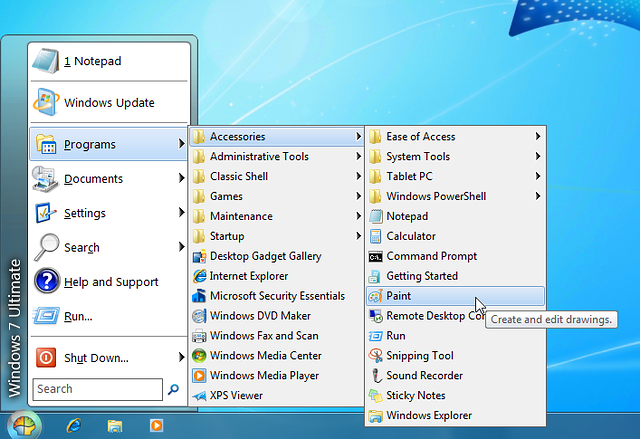
It happens to everybody at some part of the time. You lose your laptop or a computer password, and now you are locked out of it. This can become quite frustrating as you are unable to gain access back into your windows computer which has important files on it.
Fortunately, there are many options to get back into your desktop computer or laptop with custom paid software and also some free options available. Most of the available software normally works on all versions of windows from windows 10 to windows XP.
Majority of the operating systems on PCs in the world run some form of Windows, and we’re assuming you’ve got a Microsoft-based computer. Unfortunately, Microsoft won’t help you if you have lost your password – it’s their security policy. There are tricks and methods to unlock your pc.
Below we list some of the options available to you if you find yourself in such a situation and need to unlock your computer again
3 NEW UNLOCKING SOFTWARE BELOW (UPDATED 2020)

Get the zapper software >> here on Amazon
2.

Get the recovery disk >> here on Amazon
3.

Get The WIN recovery USB >> over here on Amazon
Use Your Windows 10 Password Reset Disk
 Unfortunately for this to work, you should have done this before losing your password, and if you were proactive and done it before, then you can easily use this Windows 10 password reset disk that you created to unlock your PC.
The Windows 7 or 10 password reset disk is a disk you can create for free using your existing Windows computer. This acts as a backup forgotten password disk for password recovery when you lose your password on your computer either.
If you don’t already have it, I suggest once you get back access using one of our other methods below – make one immediately. Instructions here.
Reset Your Win 10 With This Free Trick
 Everybody likes free. And there is a way to reset your Windows 7 or 10 passwords with nothing but the tools and some skills you will need to learn as we go. This is an easy trick that anyone can pull off with a little bit of understanding and perseverance for the not, so tech minded.
It involves having to boot from a windows disc or flash drive and use your PC’s Command Prompt a few times.
See our – How to Reset a Windows 10 Password for a complete tutorial.
Given the fact that you have forgotten to make a password reset disk or an administrator account without password on your computer, this free option will be the best solution if you are on a budget and need a solution.
There are some other similar free options which need some technical skills as well like using the Emergency Boot CD – The EBCD (Emergency Boot CD) (fix unbootable computers and recover data from them) or the Offline NT Password & Registry Editor (a utility that enables users to overwrite their Windows SAM file). These two utilities will also require using some command line codes.
Our picks of top 3 recommended password recovery software
Reset Password Pro
(Recommended)
We recommend this software because it supports all password recovery for windows versions up to windows 10 and..
- Its easy to use
- Supports Windows 32 bit as well as 64 bit
- Accepts credit card and paypal payments
- Covered by Clickbank Guarantee
"Ophcrack"
Ophcrack supports Windows 8, Windows 7, Windows Vista, and Windows XP. Not so much with with Windows 10 passwords.
Offline NT Password & Registry Editor
Offline NT Password & Registry Editor works on 64-bit & 32-bit versions of Windows 10, Windows 8, Windows 7, Windows Vista, and Windows XP PCs, and it reset the passwords immediately without a problem.
Reset Windows 10 Password -FREE
Guide – to reset administrator password of Windows 10 without any software.( <– Video + tutorial)
- Boot from the Windows 10 DVD. Make sure that your PC setup is configured to boot from a DVD and that UEFI and Secure Boot are disabled.
- Press SHIFT + F10 to open a command prompt.
- Check in which drive your windows is installed as in the video (diskpart command)
- Replace the file utilman.exe with cmd.exe as shown in video. Before you do this, you should make a copy of utilman.exe so that you can restore it later.
- After you have replaced utilman.exe successfully, you can remove the DVD and restart your Windows 10 install.
- On the Windows 10 sign-in page, click the Utility Manager icon
- As we replaced the Utility Manager with the cmd.exe, a command prompt should open now. Don’t worry about the error message.
- Used command line as in video to reset administrator password and close command prompt, now you can login
Password Resetter
The website is not as up-to date as the software, but the software does the password recovery for windows computers.
Quick features
- It supports Windows Vista, XP, NT, 2000, 7 and also the latest version, Windows 8.
- Rated as safe to download by both Norton and McAfee
- Two versions available corporate and personal edition
Why do you forget your password? ( +Solutions)
We forget passwords because we are human. While most people tend to remember their passwords, there are occasion’s when you can forget them. You can forget your password for many reasons – some of the reasons are listed below
- You keep changing their passwords on a regular basis for security and forgot the last one
- You have not used their laptop for a while and lost the password
- You did not write down your password (not recommended anyway)
- You made a complicated long-winded password and now can’t remember it
If you forgot your Microsoft account password, follow these steps.
Solutions:
Write it down
Write it down only if you have to, and if you do make sure it’s kept in a safe place – that you can remember.
Codeword your password
Save your password somewhere, but write it down in code that you can decipher easily looking at the word you have written down Eg if your password is hpotter32# and you like harry potter – you could write down wizard32# in your diary if that would jog your memory to the actual password hpotter32. While these are risky and not recommended methods as solutions, it is for people with not so good memory and who tend to lose it much more than others.
Lock it in your bank
If you have paid for a sake locker in your bank, write it down on a piece of paper and keep it there with your family jewels J
* The Windows® logo, Windows NT, the Windows NT logo, Windows 2000, the Windows 2000 logo, Windows XP, the Windows XP logo, Windows Vista, the Windows Vista Logo, Windows 7, the Windows® 7 logo, Windows 8 and the Windows 8 logo are all registered trademarks of Microsoft Corporation in the United States and other countries. This site and the products and services offered on this site are not associated, affiliated, endorsed, or sponsored by Microsoft Corporation., nor have they been reviewed, tested or certified by Microsoft Corporation.
Not an endorsement
Please note, by listing the above methods and software tools we’re certainly not advocating hacking in any sense. These tools are recommended to be used only if you lost your password to your own laptop or pc and at your own risk.
In fact, we strongly suggest if you don’t have the required skills you should rather take your computer to the local IT guy or hire someone to come do it for you.
Hope one of the methods above help you get back access into your computer. If you did run into any problems trying the recovery methods do send the software provider an email via contact page or then leave a comment here and I can help you if i can. Hope you don’t fall into this situation again, but just in case I would bookmark this page 🙂
Cute & Funny USB Drives (Perfect Gifts!)
Cute and cuddly, boys. Cute and cuddly
Cute & Funny USB Drives (Perfect Gifts!)
Cute and cuddly, boys. Cute and cuddly
Cute & Funny USB Drives (Perfect Gifts!)
Cute and cuddly, boys. Cute and cuddly
Daymm !! Domains Cheap as chips
The World’s #1 Domain Registrar. Get Your Australian Domain Today with discounts and our special coupon codes. Snag a discount while watching how I used some coupon codes to get some great discounts on domain names when I planned to start a new website. These promo codes will have to be used at the end of your purchase process in your cart.